
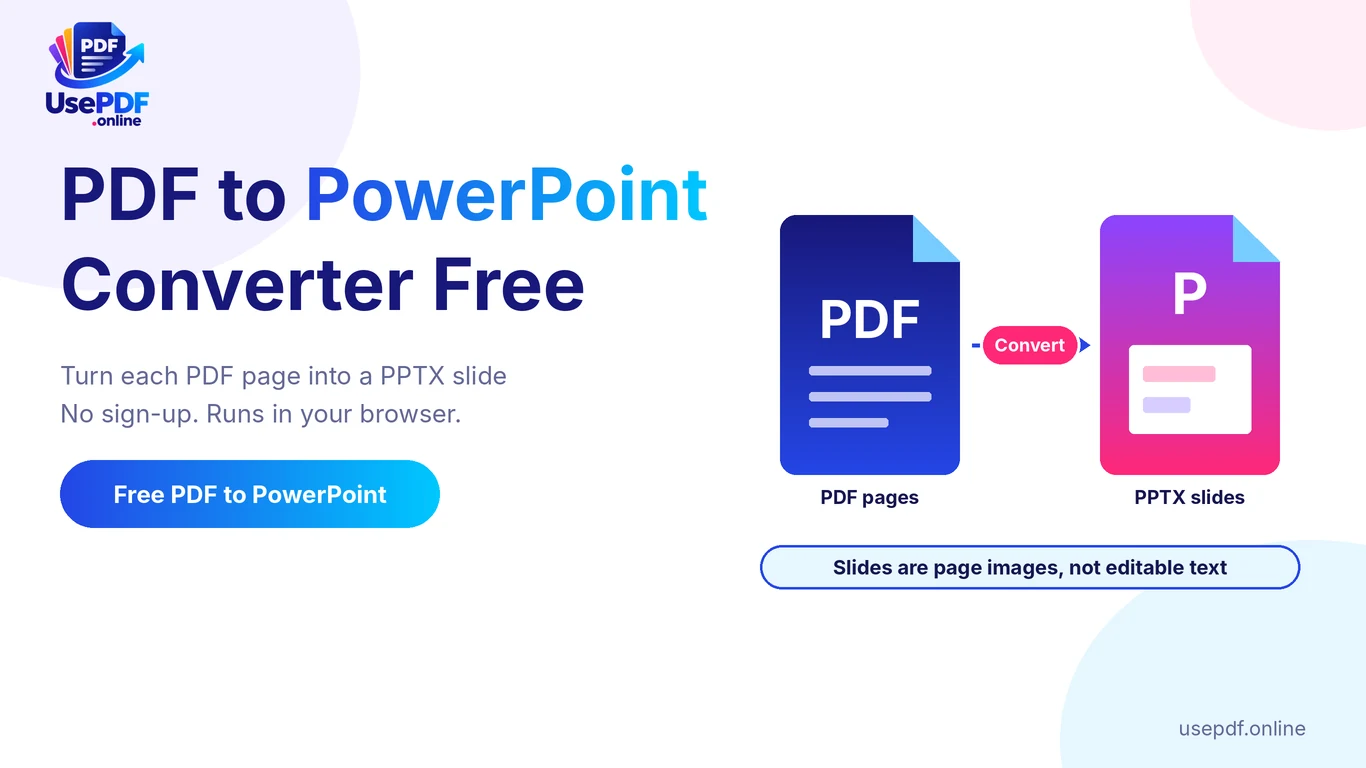
UsePDF.online is a free PDF to PowerPoint converter that turns each PDF page into one slide in a .pptx file. There is no sign-up, and the conversion runs in your browser, so your PDF is not uploaded. One honest limit matters: each slide is a high-quality image of the page, so the text is not editable inside PowerPoint. If you need editable text, convert to Word instead.
PDF to PowerPoint converter free: UsePDF turns PDF pages into PPTX slides
1. Why Convert PDF Documents to PowerPoint?
A PDF is made for reading and sharing. A presentation is made for talking. When you have to present a report, a proposal or a set of class notes that only exists as a PDF, you need slides.
Common reasons to convert PDF to slides:
- Present a PDF without scrolling. One page per slide keeps the audience on track.
- Reuse existing material. You keep the original design instead of rebuilding it.
- Add your own layer. Once in PowerPoint, you can add titles, speaker notes and transitions.
- Work in your team's tool. The .pptx opens in PowerPoint, Keynote and Google Slides.
People also search for a PDF presentation converter because copying and pasting from a PDF is slow and often breaks the layout. A converter gives you a fast first draft.
How UsePDF helps: PDF to PowerPoint is free, needs no account and keeps your file on your device. It is the quickest route when you want the PDF's pages on slides exactly as they look.
2. How to Convert PDF to PPTX Online
Here is how to convert PDF to PPTX online for free in five steps.
Five steps to convert PDF to PowerPoint on UsePDF.online
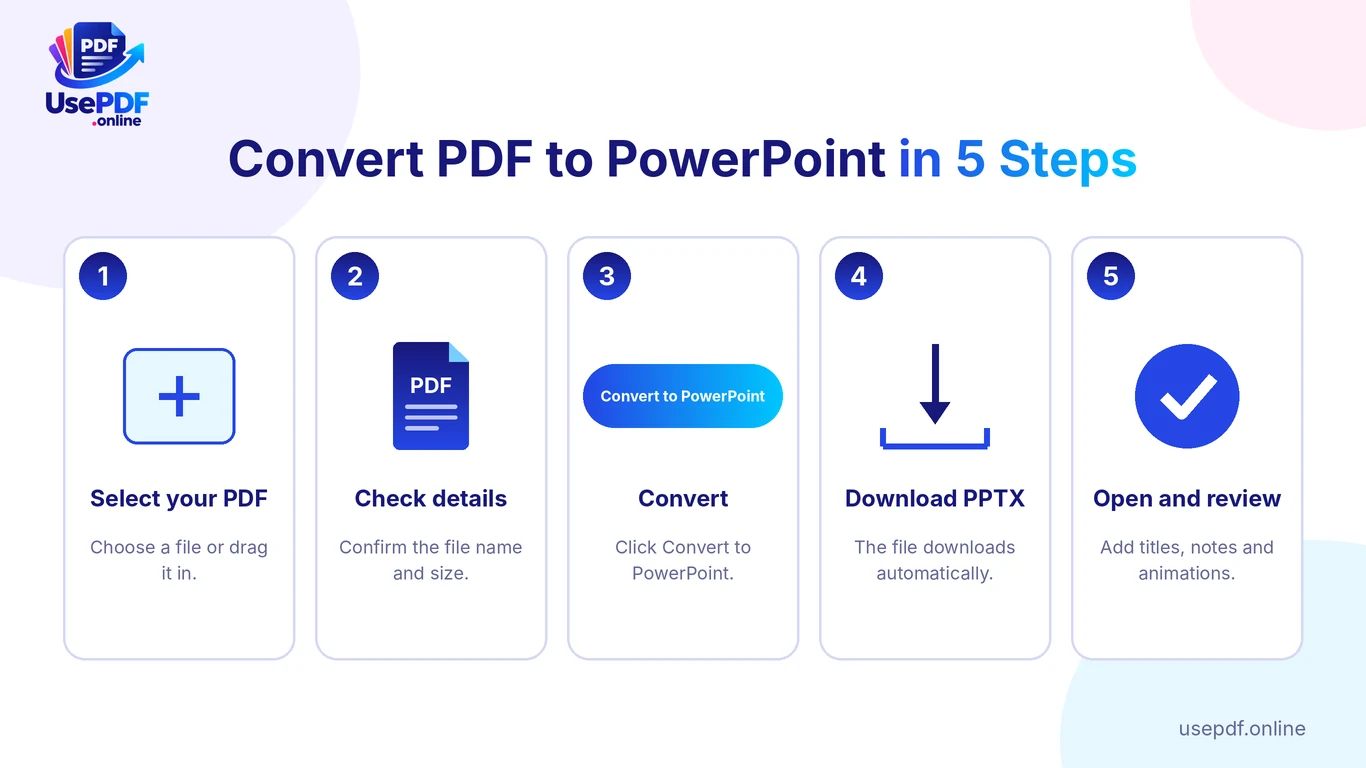
- Select your PDF. Open UsePDF PDF to PowerPoint. Choose a file or drag it onto the upload area.
- Check the details. The file name and size appear under the upload area. Make sure it is the right file.
- Click Convert to PowerPoint. A progress message shows which page is being processed.
- Download the PPTX. The .pptx file downloads automatically.
- Open and review. Open it in PowerPoint, Keynote or Google Slides, then add titles, notes or animations.
How to convert PDF to PowerPoint on a laptop
The steps are the same on Windows and Mac, because the tool runs in your browser. Use any current browser with JavaScript enabled, upload the PDF, convert and save the file from your Downloads folder. The tool also works on phones.
PDF to PowerPoint converter free, no sign-up
UsePDF's tool page is listed as free with no sign-up, so there is no account or email step. For comparison, Adobe's online page says you must sign in to save, share or edit the converted file, and Smallpdf's own guide says its free use has daily limits. Always read the current terms of any tool you use.
Related: Need a different format? See our guides to PDF to Word and PDF to Excel.
3. What Happens to PDF Pages During Conversion?
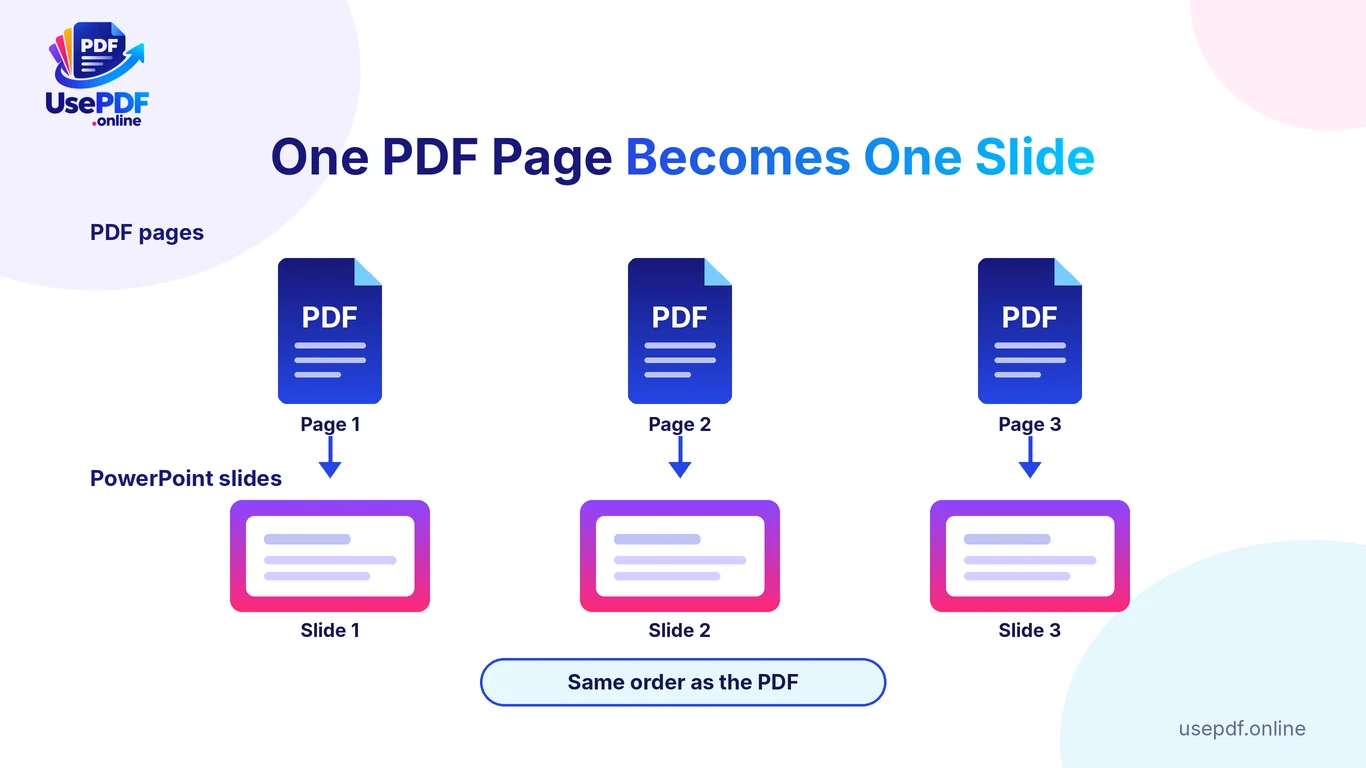
The conversion follows a simple rule: one PDF page becomes one slide, in the same order. Page 1 is slide 1, page 2 is slide 2, and so on.
How PDF pages become PowerPoint slides: one page per slide in the same order
What this means in practice:
- Order is preserved. You do not need to re-sort pages.
- The look is preserved. Fonts, colours and layout appear as in the PDF, because each page is placed as an image.
- Slide size follows the first page. UsePDF fits every page to the first page's size. If your PDF mixes page sizes, some slides can show white margins.
- Scanned pages are fine as pictures. Because pages are images, a scanned page converts like any other page. The text on it is still just a picture.
To check this yourself, take a short PDF, convert it, and confirm that the slide count equals the page count and the order matches. That takes two minutes and tells you more than any marketing page.
4. Editable Slide Elements vs Page Images
This is the question most guides skip. Can you edit the slides after conversion?
Page image slides versus editable text slides: what you can and cannot change
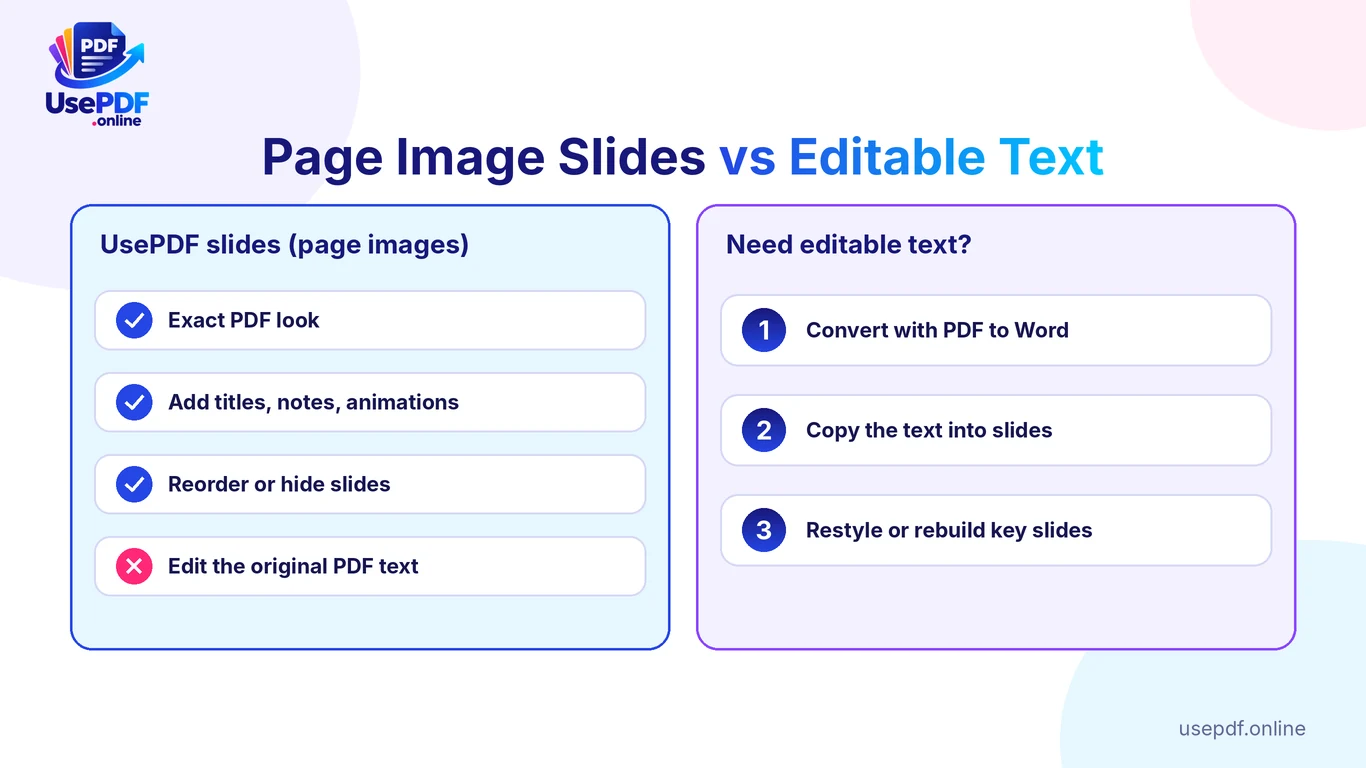
With UsePDF, each page is an image. That gives you:
| You can | You cannot |
|---|---|
| Add titles, text boxes, shapes and notes on top | Click into the original text and change it |
| Reorder, delete or hide slides | Select or search the PDF's text in PowerPoint |
| Add transitions and animations | Recolour or move individual shapes from the PDF |
| Present with the exact PDF look | Reflow text to a new layout |
Other tools describe their output as "fully editable" or editable "after sign-in". That can suit some files, but results depend on the layout, and even those guides admit some slides need manual fixes. Never assume a conversion is editable until you open the file and click the text.
Is there a free PDF to editable PPT converter?
If you need editable text, you have three honest routes:
- Keep the image slides and annotate. Fast and faithful. Best when the PDF is already well designed.
- Convert to Word, then copy into slides. Use PDF to Word to extract editable text, then paste it onto slides. Layout is not preserved, so expect to restyle. Our PDF to Word guide explains what carries over.
- Rebuild the key slides. For a short deck that you will present many times, rebuilding gives the cleanest result.
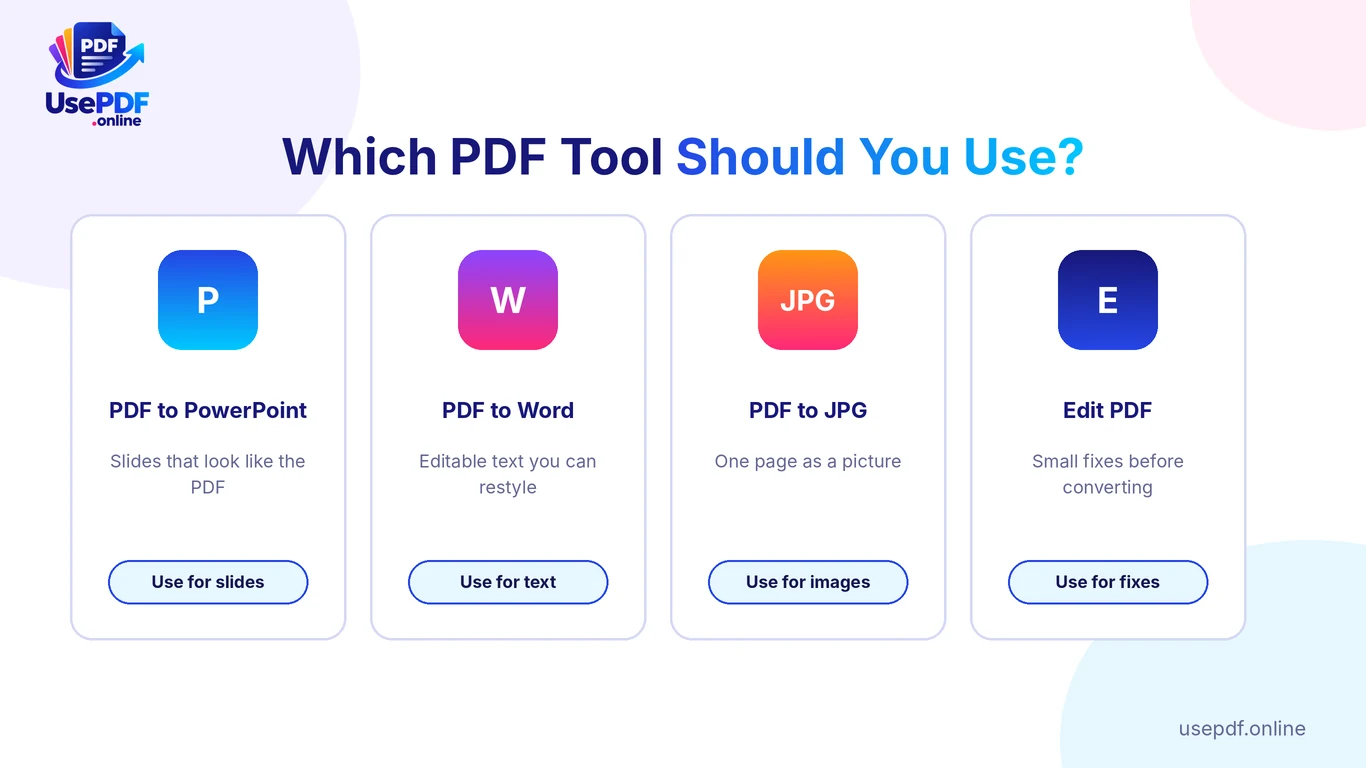
How UsePDF helps: it is the right tool when you want the PDF's pages on slides exactly as they look, and it points you to PDF to Word when you need text you can edit.
5. How to Review Slide Layout and Readability
Converted slides can look right on a laptop and be unreadable in a meeting room. Review them before you present.
Slide review checklist after converting PDF to PowerPoint
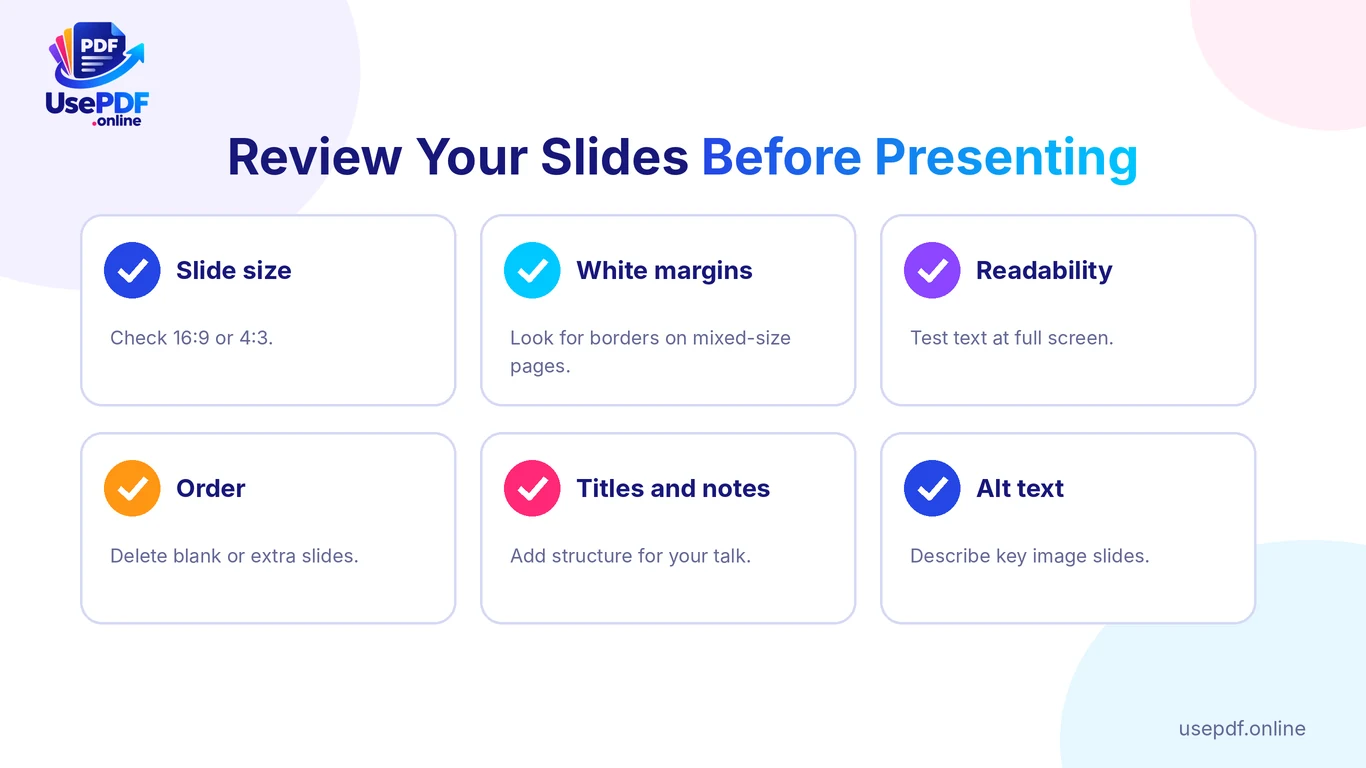
- Slide size. Check whether the deck is 16:9 or 4:3 and whether it suits your screen. Microsoft explains how to change the size of your PowerPoint slides.
- White margins. Look for borders on slides that came from pages of a different size.
- Readability. Page images of dense documents have small text. Zoom to full-screen and check that the back row could read it. If not, split the page's content across slides in your own design.
- Order and gaps. Scroll through every slide. Delete blank or irrelevant pages.
- Add structure. Add slide titles and speaker notes so the deck has a story.
- Accessibility. Page images have no readable text for screen readers. Add alt text to important slides. Microsoft shows how to add alternative text.
- Sensitive content. Look for confidential pages before sharing the deck.
6. Best Use Cases for PDF-to-Presentation Conversion
| Use case | Why it works | Watch for |
|---|---|---|
| Reports and proposals | Charts and branding stay exactly as designed | Small text on dense pages |
| Brochures and one-pagers | One designed page per slide | Mixed page sizes |
| Lecture notes and handouts | Quick way to present reading material | Too many slides; trim them |
| Scanned documents | Pages convert as pictures | Text is not editable or searchable |
| Infographics and posters | Visuals survive intact | Wide pages leave margins on slides |
| Training material | Reuse approved content unchanged | Add titles and notes for flow |
If a slide only needs one picture, PDF to JPG may be easier. You can then insert the image into any deck.
7. Common Conversion Issues
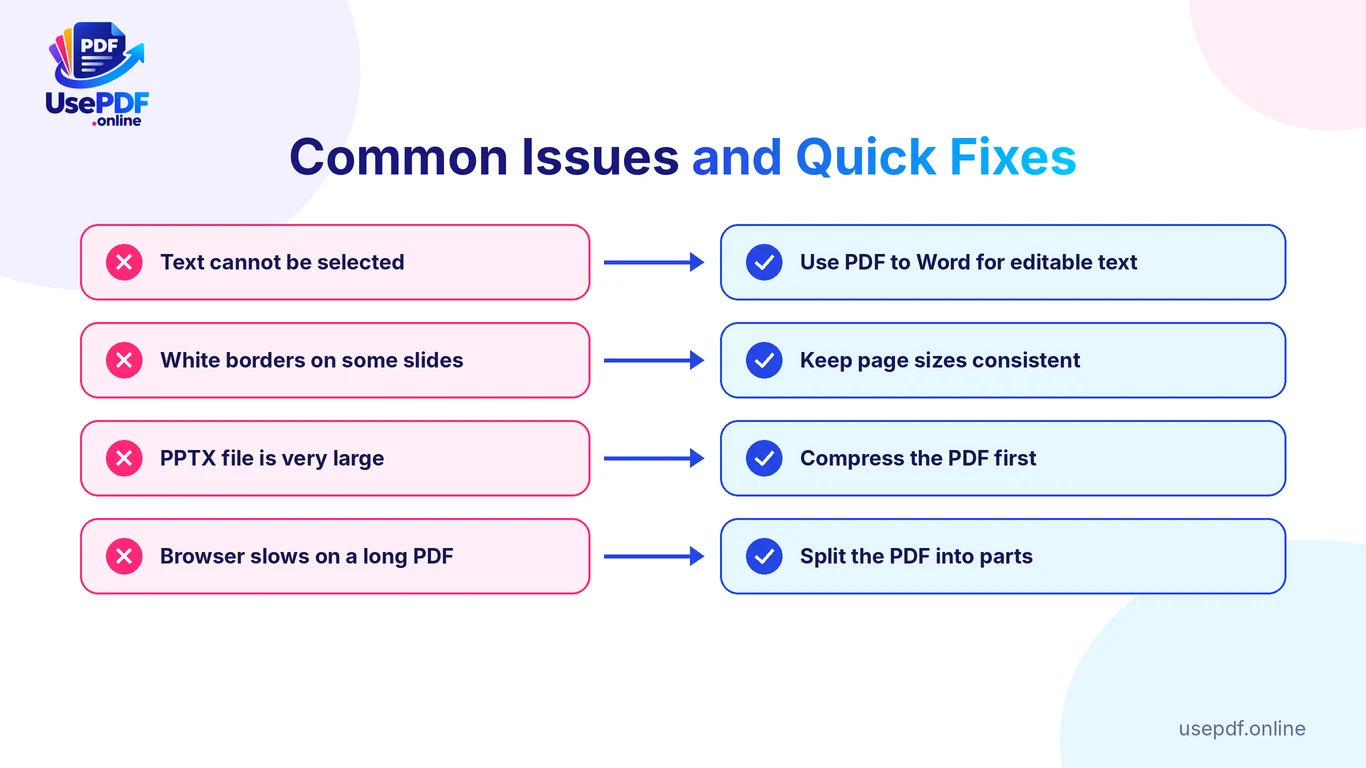
| Problem | Why it happens | Fix |
|---|---|---|
| Text cannot be selected | Pages are placed as images | Expected. Use PDF to Word for editable text |
| White borders on some slides | Page sizes differ from the first page | Split mixed-size pages, or resize slides in PowerPoint |
| The PPTX is very large | High-resolution pages | Compress the PDF first, or convert fewer pages |
| The browser slows or stalls | A very long PDF needs a lot of memory | Split the PDF into parts |
| Slides are hard to read | Dense page, small text | Rebuild that slide or crop and enlarge |
| Wrong page order | Source PDF is out of order | Fix the PDF before converting |
PDF to PowerPoint converter for large files
UsePDF's tool page states no fixed page limit, but long, high-resolution PDFs need a lot of memory. Do not expect a promise of unlimited size from any browser tool. Instead:
- Split the PDF into chapters and convert each part. Our Split PDF guide shows how.
- Compress the PDF first if it is full of images.
- Convert only the pages you need.
- Use Merge PDF to combine files before conversion if you want one deck.
What about scanned PDFs and OCR?
UsePDF does not include OCR. Because each page is placed as an image, scans still convert, but you cannot edit or search the text. To turn a scan into real text, you need OCR software first. Adobe explains how to recognize text in scanned PDFs.
8. PDF to PowerPoint vs Rebuilding Slides Manually
| Convert with UsePDF | Rebuild manually | |
|---|---|---|
| Speed | Seconds for a first draft | Slow, slide by slide |
| Look | Matches the PDF exactly | You design every slide |
| Editable text | No (images) | Yes |
| Readability | Depends on the source page | You control font size and layout |
| Best for | Presenting existing pages as they are | A deck you will present and update often |
A good mixed approach: convert the whole PDF for speed, then rebuild only the slides that carry your key message.
Best free PDF to PowerPoint converter: how to choose
We do not rank competitors, because limits and policies change. Judge any converter on these points, and check the tool's own page:
- Does it need sign-up or sign-in?
- Is your file uploaded to a server or processed in your browser?
- Is the output editable text or page images?
- Does it state its limits (file size, pages, daily use)?
- Does it add a watermark?
- Does it support scanned PDFs?
UsePDF's answers, from its tool page: no sign-up, processed in your browser, page images, no fixed page limit stated but long files may be slow, and OCR not included. The page does not mention watermarks or password-protected PDFs, so test those yourself.
9. Tips for Better Presentation Results
- Clean the PDF first. Remove unwanted pages with Split PDF before converting.
- Keep page sizes consistent. This avoids white margins.
- Compress heavy PDFs. A smaller source gives a smaller deck.
- Add titles and notes. Image slides need your words to guide the audience.
- Do not crowd slides. If a page is too dense, split it into two slides.
- Need to change something small? Fix it in the PDF with Edit PDF before converting. Our guide to editing a PDF online free explains what it can and cannot change.
- Going the other way? Use Excel to PDF for sheets, or compare with PDF to Excel for tables.
- Test first. Convert a few pages before a large deck.
10. Frequently Asked Questions
Can I convert PDF to PowerPoint online for free?
Yes. Open UsePDF's PDF to PowerPoint tool, select your PDF, click Convert to PowerPoint and the .pptx downloads. It is free and needs no sign-up.
How can I convert a PDF to PowerPoint without paying?
Use a free browser converter such as UsePDF. Check each tool's terms for sign-in requirements, daily limits and watermarks before you rely on it.
What are the best free tools to convert PDF files to PowerPoint presentations?
The best tool depends on what you need. For exact page appearance and privacy, a browser tool like UsePDF suits well. For editable text, convert to Word first. Use the six checks in section 8 to compare any option.
What are the top-rated free PDF to PowerPoint converters available online?
Ratings change and differ by source, so we do not rank them here. Choose by the criteria in section 8 rather than by a single score.
What are the limitations of free PDF to PPT conversion services?
Typical limits are sign-in requirements, daily caps, watermarks, file-size limits, no OCR, and slides that need manual cleanup. UsePDF's own limits: page images rather than editable text, slide size taken from the first page, and slower handling of very long PDFs.
Is there a free PDF to PowerPoint converter with no file size or usage limits?
UsePDF advertises no sign-up and its home page says no daily limit. Its PDF to PowerPoint page states no fixed page limit, but very long or heavy PDFs may slow your browser. Split or compress large files.
Can I convert a PDF to an editable PowerPoint presentation?
Not directly with UsePDF, because slides are page images. Use PDF to Word to extract text, then paste it into slides, or rebuild the key slides.
Does it work offline?
No. The tool needs an internet connection to load the page. Your PDF itself stays on your device and is not uploaded.
Are my files uploaded?
No. UsePDF says slides are created in your browser and the PDF is not uploaded. Still follow your organisation's rules for confidential files. See the privacy policy.
Can it convert scanned PDFs?
Scanned pages convert as images, so they appear on slides, but there is no OCR and the text cannot be edited.
Can I open the file in Google Slides or Keynote?
Yes. The .pptx opens in PowerPoint, Keynote and Google Slides.
Is there an AI version?
UsePDF's converter places page images and does not rewrite or summarise content. If you want AI to draft a new deck from your document, that is a different type of tool.
Convert Your PDF to Slides Now
Open UsePDF PDF to PowerPoint, convert your PDF, and use the checklist above before you present.
More tools: PDF to Word, Compress PDF, Split PDF, or browse all UsePDF tools.