
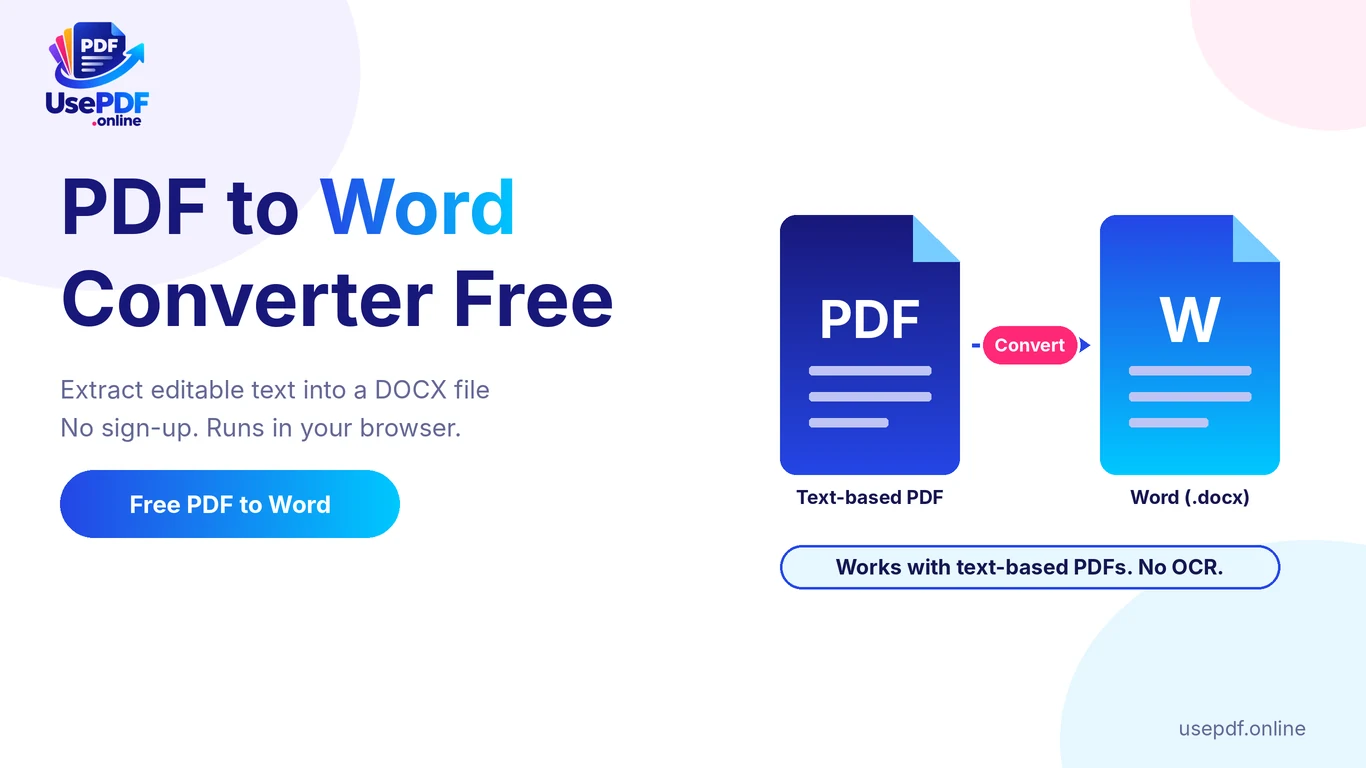
A PDF to Word converter free of cost and sign-up lets you turn a text-based PDF into an editable Word (.docx) file in a few clicks. With UsePDF.online, you select your file, click Convert to Word, and download the result directly from your browser. There is no registration, subscription, watermark, or daily usage limit, so you can pull the text out of a PDF and edit it without typing everything again.
Unlike tools that simply turn PDF pages into images, UsePDF.online extracts selectable text and places it into a Word document that you can edit using Microsoft Word, Google Docs, or LibreOffice Writer. One thing to understand before converting: the tool focuses on text extraction rather than reproducing the original PDF design. It preserves page breaks and joins lines into paragraphs where possible, but does not retain original images, tables, fonts, columns, or exact page layouts.
In this guide, you'll learn how to convert PDF to Word online for free, understand the difference between text-based and scanned PDFs, and choose the right conversion method for your document.
Try the free PDF to Word converter
1. Why Convert PDF Files to Word?
PDF is a convenient format for sharing documents because it helps maintain a consistent appearance across different devices. However, editing a PDF can sometimes be difficult, especially when you don't have access to the original document. Converting a PDF into a Word file makes its text easier to reuse, update, and organize.
Here are some common reasons people use a PDF to Word converter.
Edit Existing Documents
Imagine receiving a report, letter, or business document as a PDF. You need to correct a few sentences, update information, or add a new paragraph.
Instead of recreating the entire document, you can extract its text into a Word file and make the necessary changes.
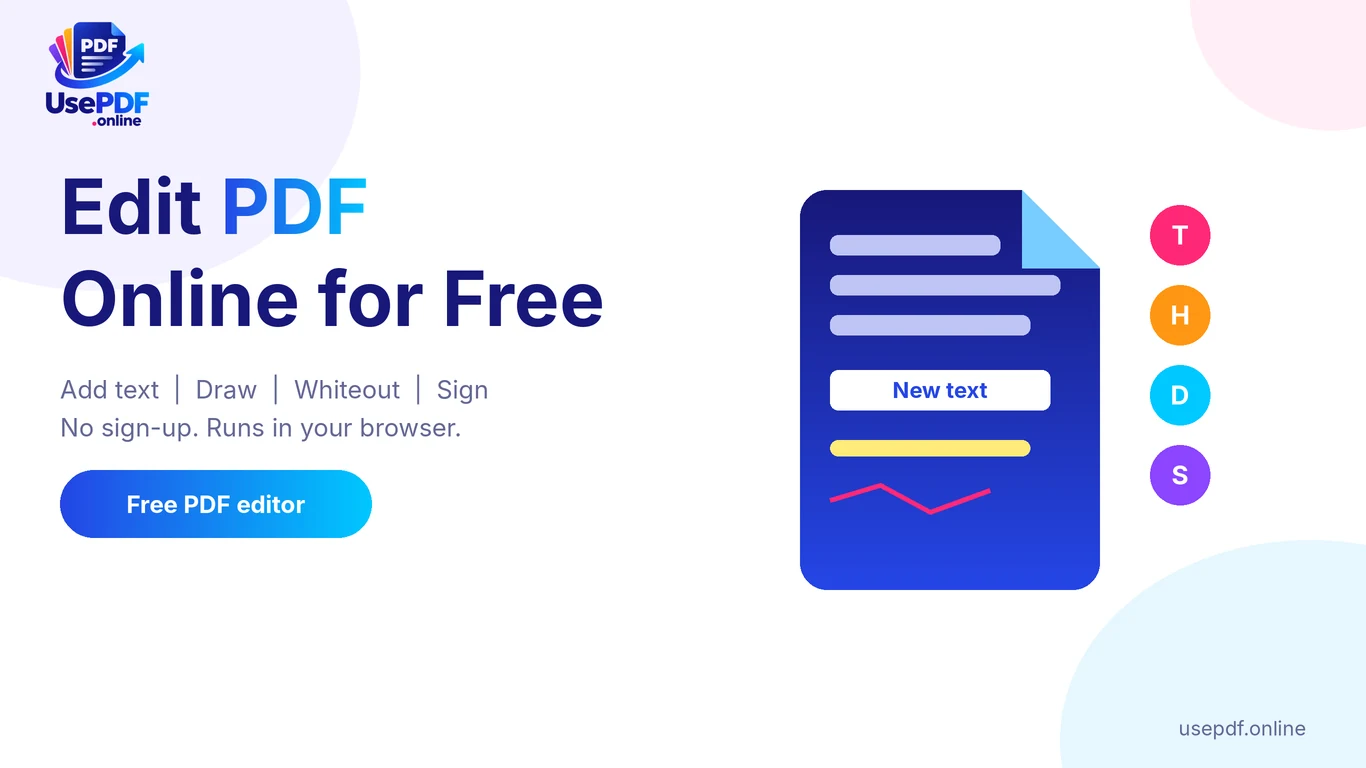
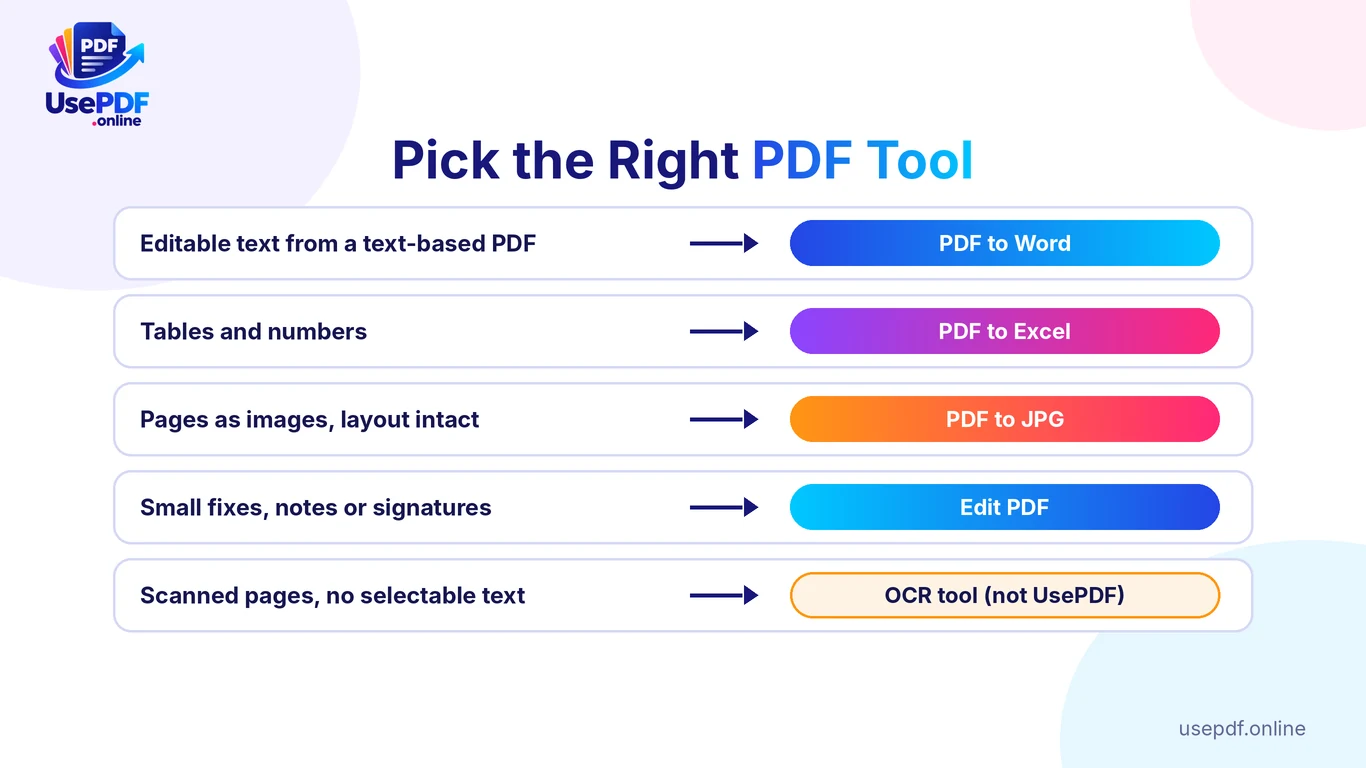
For a small fix, such as a wrong date or a missing note, you may not need to convert the file at all. UsePDF's Edit PDF tool lets you add text, highlights and a signature on top of the page, or cover a word with Whiteout and type the correction above it. It does not rewrite the original text, so use PDF to Word when you need to change whole paragraphs.
Reuse Text Without Typing Everything Again
Students, researchers, and professionals often work with information stored in PDF documents.
A PDF to Word converter helps extract text that can be reused in notes, assignments, research documents, and reports, subject to applicable copyright and permissions.
Update Old Business Documents
Businesses may have older proposals, policies, letters, and CVs available only as PDF files.
Converting these documents into editable text provides a useful starting point for creating updated versions.
Translate or Proofread PDF Content
If you want to translate a document or improve its writing, working with editable text is generally easier than copying individual paragraphs from a PDF.
You can convert the document to Word and then open it in your preferred editing or proofreading software.
Extract Text for Research and Documentation
Researchers and office professionals may need to quote, summarize, or reference information from PDF reports.
A PDF to Word converter makes it easier to access and organize the document's text.
2. How to Convert PDF to Word Online for Free
You don't need to install Microsoft Office or download additional conversion software to extract text from a PDF using UsePDF.online. The entire conversion process takes place in your browser.
Follow these simple steps.
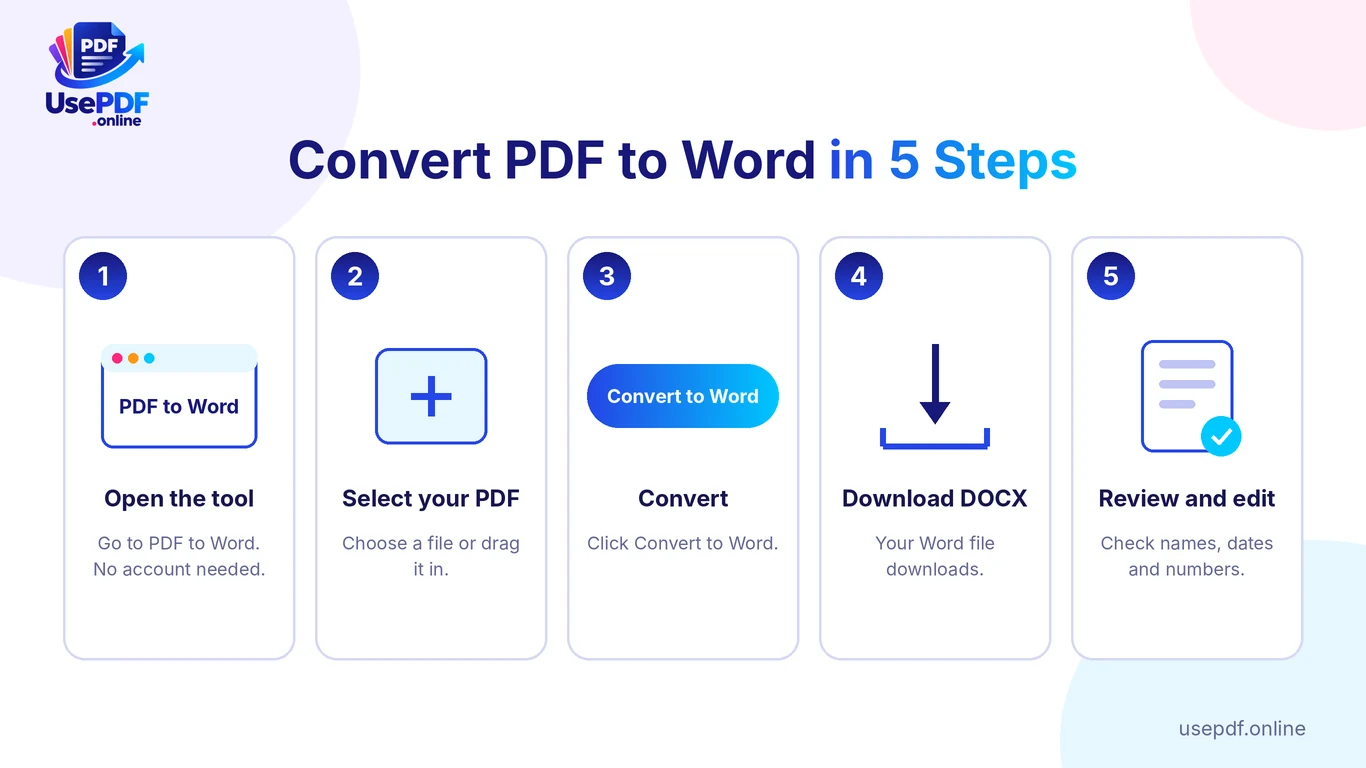
Step 1: Open the UsePDF.online PDF to Word Converter
Visit the UsePDF.online PDF to Word converter.
The tool opens directly in your browser. You don't need to create an account, enter your email address, or purchase a subscription.
Step 2: Select Your PDF File
Click the file selection area and choose the PDF document you want to convert.
You can also drag and drop your PDF into the upload area.
After selecting the document, check the displayed filename and file size before continuing.
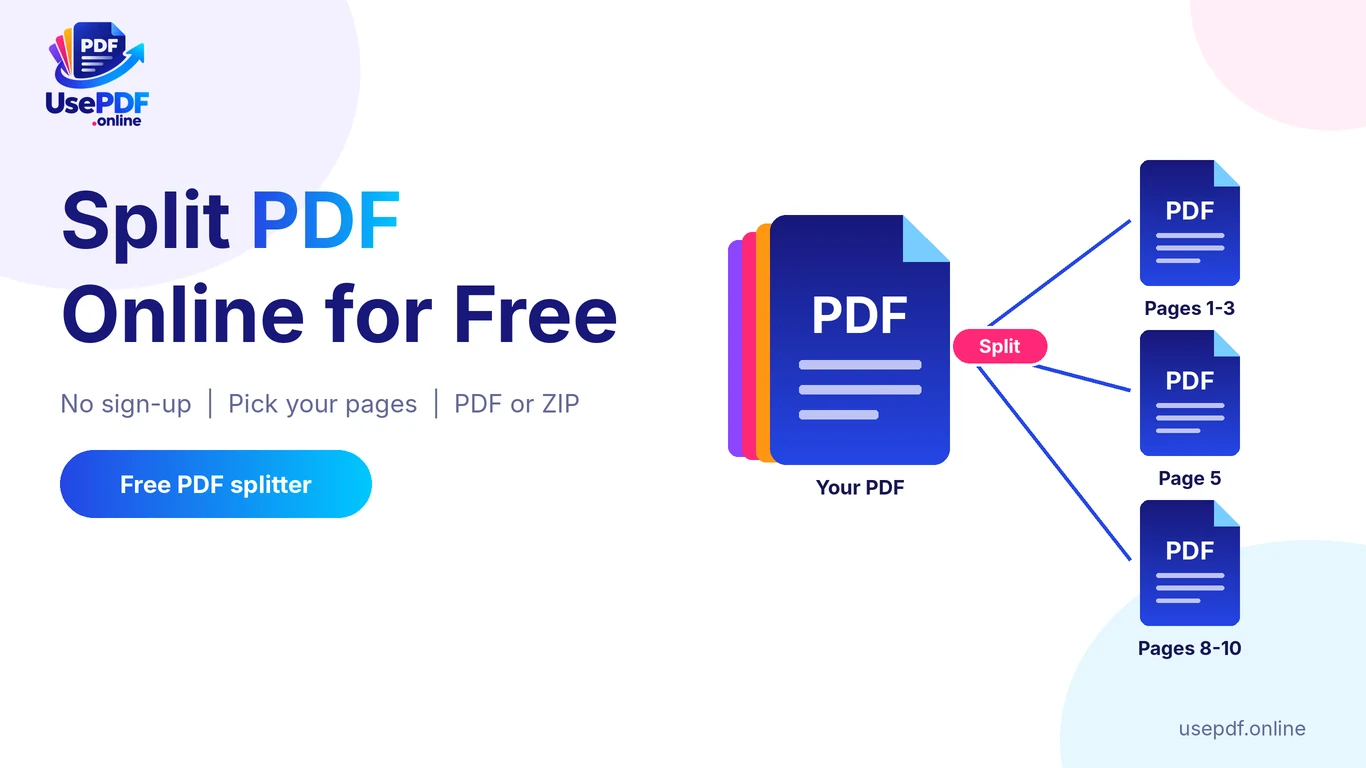
Tip: Need only a few pages? Extract them first with Split PDF by entering a range such as 3-7, then convert the smaller file. This keeps the Word document short and easier to edit.
Step 3: Click Convert to Word
Once your PDF is selected, click the Convert to Word button.
UsePDF.online reads the selectable text from each page and prepares a new Microsoft Word-compatible document.
The tool joins lines into paragraphs where possible and keeps the original page breaks.
Step 4: Download Your DOCX File
When processing finishes, the converted .docx file downloads automatically.
You can open the document using:
- Microsoft Word
- Google Docs
- LibreOffice Writer
- Other applications that support DOCX files
Step 5: Review and Edit Your Document
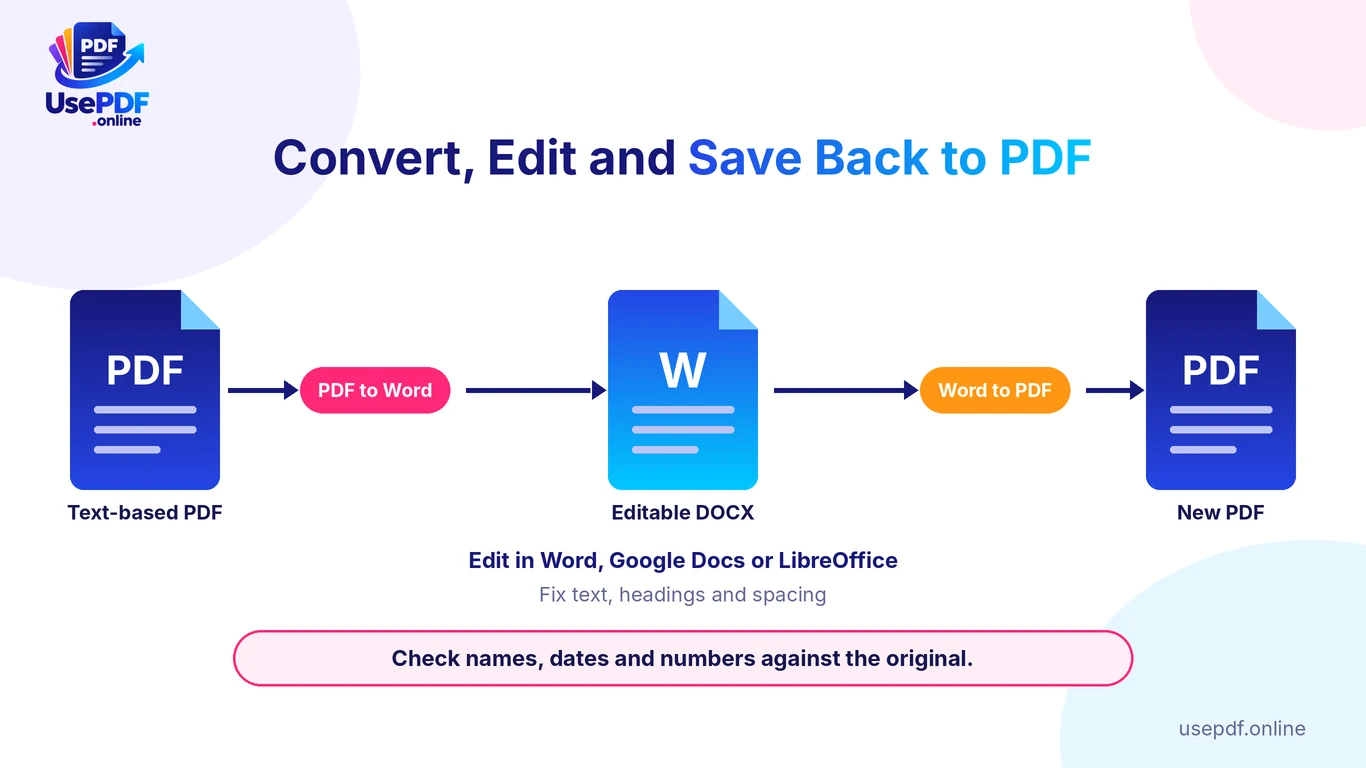
Open the downloaded Word file and review the extracted text.
You may need to adjust headings, paragraph spacing, lists, and other formatting.
Check important names, dates, numbers, and other details against the original PDF before using or sharing the converted document.
Why use UsePDF.online?
- Completely free standard conversion.
- No account or email registration.
- No daily conversion limits.
- No output watermark.
- Browser-based processing.
- Your PDF is not uploaded to UsePDF.online's servers.
You can repeat the process whenever you need to convert another document, subject to your browser and device capabilities.
3. What Happens to Text and Page Breaks?
Not every PDF to Word converter works in the same way.
Some tools attempt to reproduce the complete visual layout of a PDF, while others focus on extracting the actual text.
UsePDF.online follows the text-extraction approach.
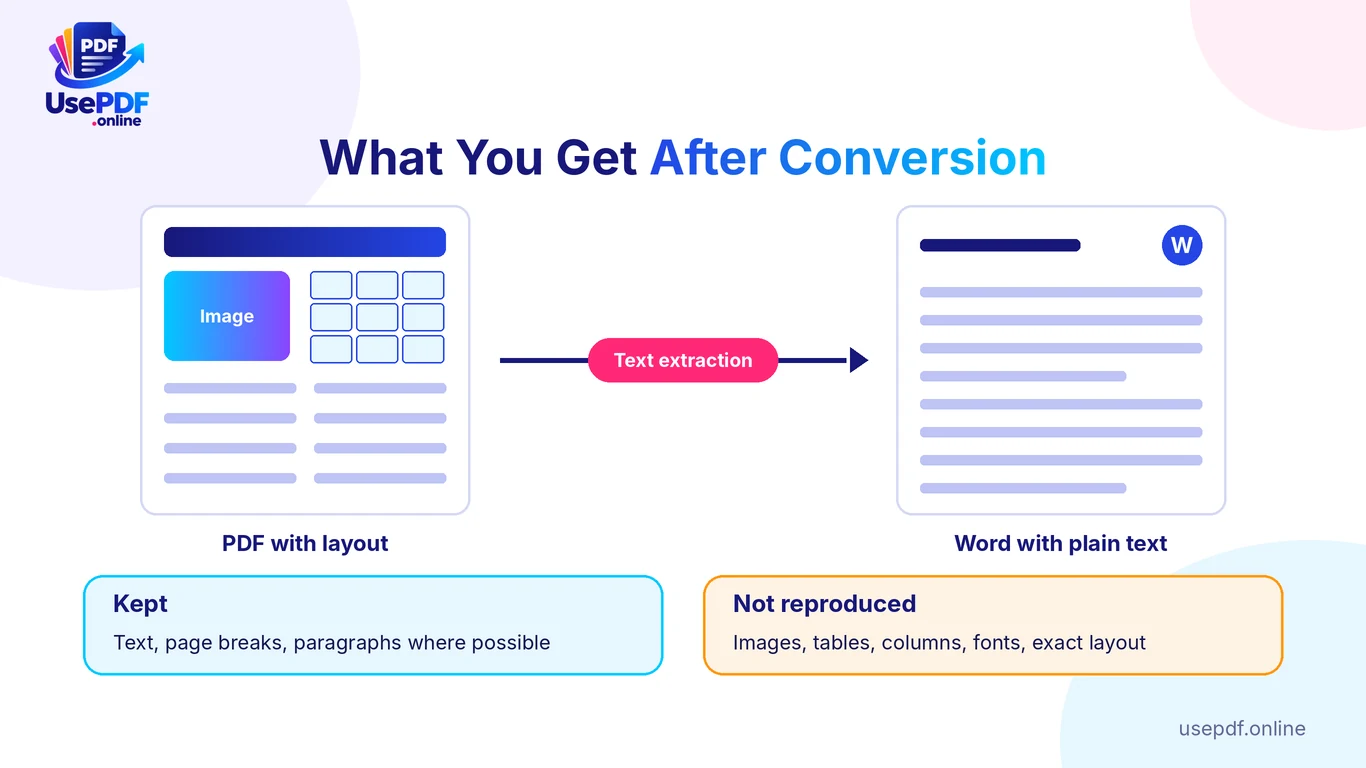
When you convert a supported PDF, the tool reads its selectable text and creates normal, editable paragraphs in a new Word document.
Here's what happens to different document elements.
| PDF element | What happens after conversion? |
|---|---|
| Selectable text | Extracted into editable Word text |
| Page breaks | Preserved between PDF pages |
| Paragraphs | Lines are joined into paragraphs where possible |
| Images | Not reproduced |
| Tables | Not reconstructed as Word tables |
| Columns | Original column layout is not preserved |
| Fonts and colors | Original styling is not retained |
| Page design | Not reproduced exactly |
Does the Converted Word File Look Exactly Like the PDF?
No. The purpose of this converter is to extract editable text rather than duplicate the original document's appearance.
For example, if your PDF contains a two-column newsletter, the converted Word file may contain the extracted text in a simpler paragraph-based structure. This approach is useful when you care more about accessing and editing the words than preserving the original design.
If your priority is maintaining images and the visual appearance of a PDF page, consider converting PDF pages into JPG images instead.
4. Why Formatting May Change During Conversion
PDF and Word documents are designed for different purposes.
PDF is primarily intended to preserve a fixed document layout, while Word is designed for editing and arranging text.
This difference can affect conversion results.
PDF Doesn't Always Store Text as Normal Paragraphs
A PDF may position individual lines and text blocks at specific coordinates on a page.
It doesn't necessarily store them as complete Word-style paragraphs.
During text extraction, software must interpret how these lines belong together.
This is why some paragraphs may need manual adjustments.
Tables May Become Plain Text
Consider a PDF containing a financial report with several rows and columns.
The text extraction process may read the words and numbers without recreating the original table structure.
If you need structured spreadsheet data, use a dedicated PDF to Excel converter instead.
Multiple Columns Can Lose Their Original Arrangement
Newspapers, academic papers, and newsletters often contain two or more columns.
When converted into plain editable text, their original visual arrangement may not remain intact.
You may need to reorganize the extracted paragraphs in Word.
Images and Graphics Are Not Included
If your PDF contains logos, diagrams, photographs, or charts, they won't be reproduced in the extracted Word document. The converter is designed for text extraction rather than complete document reconstruction.
Practical tip: Always review the converted document before using it as a final business report, academic submission, or official document.
5. Text-Based PDFs vs Scanned PDFs
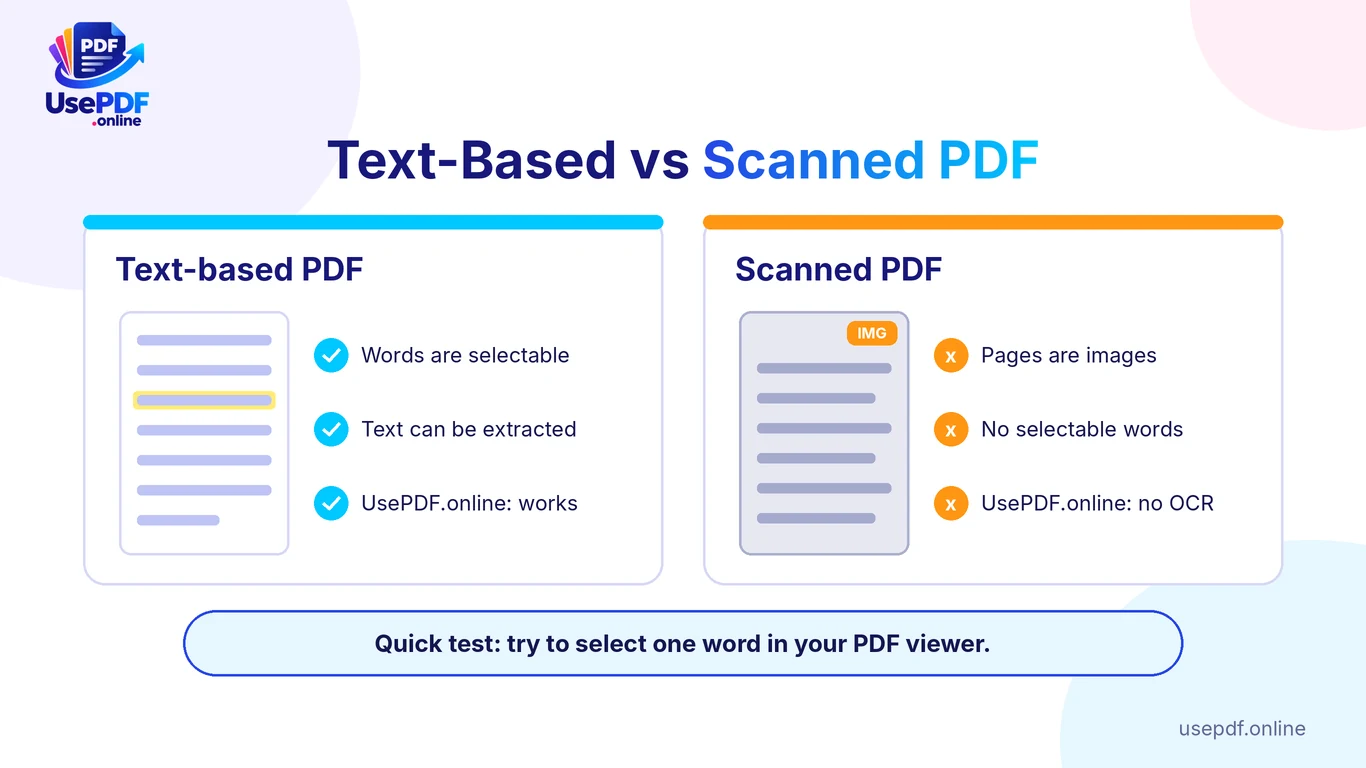
One of the most important things to understand before converting a PDF is whether it contains selectable text or scanned images. These two PDF types may look identical when opened, but their internal content is different.
What Is a Text-Based PDF?
A text-based PDF contains actual digital text that a PDF viewer can recognize.
For example, a report exported directly from Microsoft Word usually contains selectable text.
You can click and drag your mouse over a sentence to highlight individual words.
UsePDF.online can extract this text and place it into an editable Word document.
What Is a Scanned PDF?
A scanned PDF is generally made up of images of document pages.
For example, if someone scans a printed contract using a scanner or mobile phone, each page may be stored as an image rather than searchable text. Although the document looks like a normal PDF, the words may not be selectable. A standard text-extraction converter cannot directly read those words.
How to Check Which Type of PDF You Have
Before using a PDF to Word converter, perform this simple test:
- Open your PDF in a browser or PDF reader.
- Try selecting an individual word with your mouse or finger.
- If you can highlight the text, your PDF likely contains selectable text.
- If you can only select the entire page as an image or cannot highlight individual words, it may be a scanned document.
This quick check helps you choose the right conversion method.
6. Why OCR Is Needed for Scanned Documents
OCR stands for Optical Character Recognition.
It is a technology that analyzes images of printed or handwritten text and attempts to recognize the characters and words. For example, imagine you have a scanned five-page agreement.
Without OCR, the PDF contains images of those pages rather than editable text.
An OCR-enabled converter analyzes the page images and attempts to turn the recognized words into digital text.
PDF to Word Without OCR vs PDF to Word With OCR
| Feature | Without OCR | With OCR |
|---|---|---|
| Extract selectable text | Yes | Yes |
| Read scanned page images | No | Yes |
| Recognize printed characters in scans | No | Yes |
| Handle image-based PDFs | Not directly | Supported, depending on the OCR tool |
| Recognize handwriting | No | Depends on OCR capabilities |
| Require text recognition processing | No | Yes |
Does UsePDF.online Support Scanned PDF Conversion?
UsePDF.online's current PDF to Word tool does not include OCR.
It works with PDF documents containing selectable text. If you upload a scanned PDF without a selectable text layer, the tool detects that no extractable text is available and displays a message rather than producing an empty Word document.
This is an important limitation to understand before choosing the converter.
What If You Need to Convert a Scanned PDF to Word?
You'll need an OCR-enabled PDF to Word converter.
Some tools and document applications provide OCR features that recognize text from scanned pages.
For example, Adobe Acrobat offers OCR-related capabilities in its document workflows, such as its recognize text feature, with availability depending on the product and subscription. After OCR processing, review the recognized text carefully because incorrect character recognition can affect names, dates, numbers, and other important information.
UsePDF.online is a practical free option for text-based PDFs, but scanned documents require a different solution.
7. How to Edit the Converted Word Document
After downloading your DOCX file, you can edit it using your preferred word processor.
Edit Using Microsoft Word
- Open Microsoft Word.
- Select Open and locate your downloaded DOCX file.
- Review the extracted paragraphs.
- Correct text, headings, and spacing where necessary.
- Save your updated document.
Edit Using Google Docs
- Open Google Docs.
- Upload your downloaded DOCX file to Google Drive.
- Open the file using Google Docs.
- Make the required changes.
- Save or download the updated document.
Edit Using LibreOffice Writer
LibreOffice Writer is another option for editing DOCX documents.
Open the downloaded file, make changes, and save it in your preferred format.
Need to Convert the Word File Back to PDF?
After editing, you may want to share the final document as a PDF. UsePDF.online also provides a free Word to PDF converter. You can use this workflow to extract text from an existing PDF, make changes in Word, and create a new PDF document.
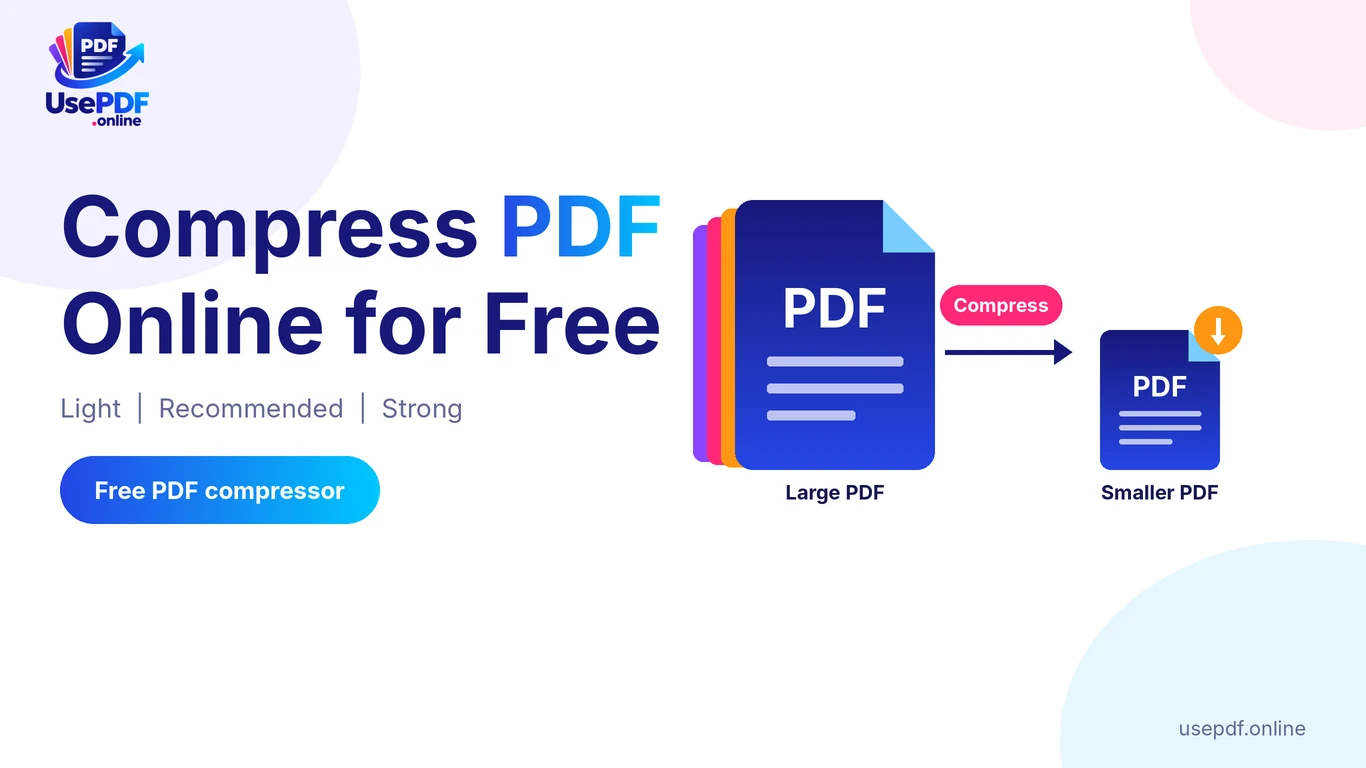
Ready to share the final file? If it is too large to email, Compress PDF can reduce its size, but it turns pages into compressed images, so the text will no longer be selectable or searchable. Keep your editable DOCX and the uncompressed PDF as backups. To combine the new PDF with other documents, use Merge PDF.
8. Common PDF to Word Conversion Errors and Solutions
Occasionally, you may encounter problems while converting a PDF to Word.
Here are some common situations and how to handle them.
| Problem | Possible reason | What to do |
|---|---|---|
| No selectable text found | PDF contains scanned images | Use an OCR-enabled converter |
| Paragraphs look unusual | PDF text is positioned as separate lines | Join and format paragraphs manually |
| Tables look like plain text | Table structure isn't reconstructed | Try PDF to Excel for spreadsheet data |
| Images are missing | Converter extracts text only | Insert images separately or use another workflow |
| Formatting looks different | Original layout isn't preserved | Adjust fonts, spacing, and headings in Word |
| Conversion takes longer | Large document or limited device memory | Try a smaller document or desktop browser |
| Numbers or names are incorrect | Extraction or source-document issue | Compare important details against the original |
Why Does the Converter Say No Selectable Text Found?
This usually means your document is scanned or image-based.
The converter cannot extract words from an image without OCR.
Try selecting text in your PDF viewer to confirm whether the document contains actual text.
Why Are Paragraphs Split in the Wrong Places?
PDFs don't always contain traditional paragraph structures.
The extraction process estimates which lines belong together, so some paragraphs may require manual correction.
Why Are Tables Not Properly Formatted?
UsePDF.online's PDF to Word tool extracts text rather than rebuilding tables.
If your document contains financial data, spreadsheets, or structured numerical information, the PDF to Excel converter may be a better option.
9. PDF to Word vs Copying Text Manually
You might wonder whether it's easier to copy and paste text manually instead of using a converter.
For short documents, manual copying can work. However, it becomes inconvenient when dealing with multiple pages.
Here's how the two methods compare.
| Comparison | PDF to Word Converter | Manual Copy and Paste |
|---|---|---|
| Extract multiple pages | Yes | Time-consuming |
| Editable text | Yes | Yes |
| Preserve original design | Depends on converter | Usually requires manual formatting |
| Handle long documents | More convenient | Can take significant time |
| Select individual sections | Depends on page selection | Yes |
| Requires manual corrections | Sometimes | Often |
| Best for | Extracting text from longer PDFs | Copying a few short passages |
A dedicated PDF to Word converter is generally more convenient when you need to extract text from an entire document.
UsePDF.online makes this process straightforward for supported text-based PDFs without requiring registration or a paid subscription.
10. Frequently Asked Questions
1. What is the best free PDF to Word converter?
The best option depends on your requirements.
UsePDF.online is a useful choice if you want to extract selectable text from a PDF into an editable DOCX file without signing up or paying.
However, if you need OCR for scanned PDFs or exact layout reconstruction, choose a converter that specifically supports those features.
2. Can I convert PDF to Word online for free without signing up?
Yes. UsePDF.online lets you convert supported PDFs into editable Word documents without creating an account, entering your email address, or purchasing a subscription.
Visit the PDF to Word converter to get started.
3. Can I convert PDF to Word without installing software?
Yes. UsePDF.online runs directly in your browser.
You can select your PDF, convert it, and download the resulting DOCX file without installing a separate PDF conversion application.
4. Does UsePDF.online support scanned PDF to Word conversion?
No. Its current PDF to Word converter extracts existing selectable text and does not include OCR.
For scanned PDFs, you need an OCR-enabled solution that can recognize text from page images.
5. Is there a free PDF to Word converter with OCR?
Some online services and desktop applications offer free OCR features, sometimes with usage restrictions or other limitations.
Check the current terms and feature availability before choosing one.
UsePDF.online does not currently offer OCR in its PDF to Word tool.
6. Can I use a free PDF to Word converter offline?
UsePDF.online is a browser-based online service. You need an internet connection to open the website and load its processing resources.
The actual PDF text extraction takes place locally in your browser, but that does not make it a downloadable offline Windows application.
If you need completely offline conversion, look for a desktop application that explicitly supports local PDF-to-DOCX processing.
7. Can I convert PDF to Word on Windows 10?
Yes. You can open UsePDF.online in a compatible browser on Windows 10 and convert supported PDFs without downloading a separate converter.
The same browser-based workflow can also be used on other compatible desktop and mobile systems.
8. Is UsePDF.online's PDF to Word converter safe?
The converter processes your document locally in your browser rather than uploading the PDF to UsePDF.online's servers.
This reduces the need to transmit document contents to a remote conversion service.
However, normal security precautions still matter. Keep your browser updated, use a trusted device, and be careful with browser extensions and confidential documents.
9. Does PDF to Word conversion preserve the original formatting?
UsePDF.online preserves extracted text and page breaks, but it does not reproduce original images, tables, fonts, colors, columns, or exact page layouts.
You may need to format the resulting Word document manually.
10. Can I convert Word back to PDF after editing?
Yes. After making changes to your DOCX document, use the free Word to PDF converter to create a new PDF.
Final Thoughts
Converting PDF to Word can save time when you need to update an old document, reuse existing text, or work with information stored in a PDF.
With UsePDF.online, you can extract selectable PDF text into an editable DOCX file directly in your browser without installing software, creating an account, or paying for standard conversion.
The tool is particularly useful for text-based reports, letters, research documents, and other PDFs where editable text matters more than preserving the original design.
Just remember that scanned documents require OCR, and complex layouts, images, and tables may need additional formatting.
If you need a simple, free PDF to Word converter without daily usage limits, give UsePDF.online a try.
No sign-up. No watermark. No daily limits. Just a straightforward way to extract editable text from your PDF documents.
Explore more free PDF tools for merging, splitting, compressing and editing PDF files.