
That short answer covers most jobs: filling a flat form, correcting a date, marking up a draft or signing a page. It does not cover rewriting a whole paragraph or reading scanned text. The sections below show how each edit works and where the limits are.
What Can You Edit in a PDF?
A PDF does not store text as editable paragraphs the way a Word file does. It stores where each piece of text sits on the page. So a free browser PDF editor works in two ways: it places new objects on the page, or it covers old ones.
With UsePDF.online's Edit PDF tool you can:
- Add text by clicking or tapping a spot and typing.
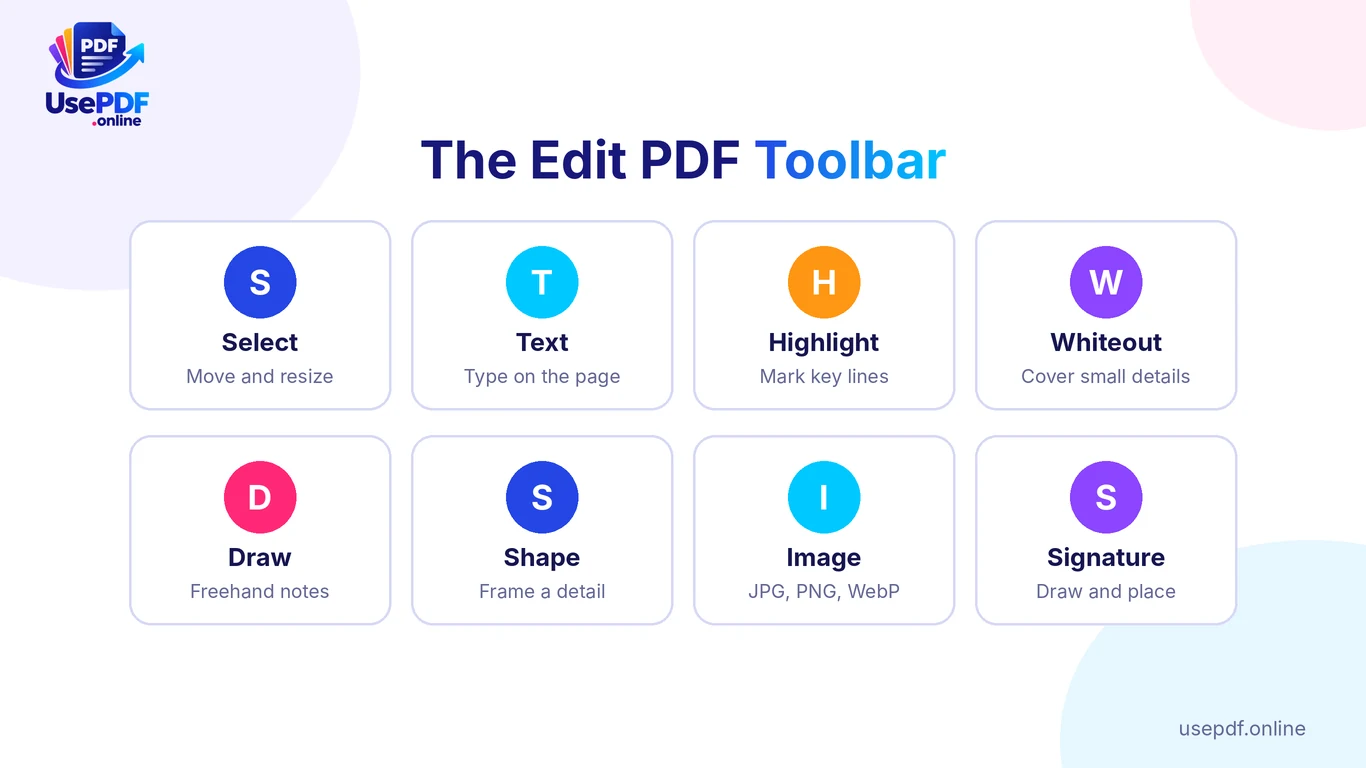
- Highlight lines you want to mark.
- Draw freehand notes, underlines and circles.
- Add shapes to point at or frame a detail.
- Insert images in JPG, PNG or WebP format.
- Add a signature drawn on a small pad.
- Cover small details with Whiteout.
- Rotate, delete or reorder pages with the page buttons.
What it does not do: edit existing text directly, rebuild a scanned page into text, or permanently redact private data. Each limit is explained below.
How UsePDF helps: the tool covers everyday edits in one place, free and without an account, so you can fix a small mistake without installing software.
How to Edit a PDF Using UsePDF.online
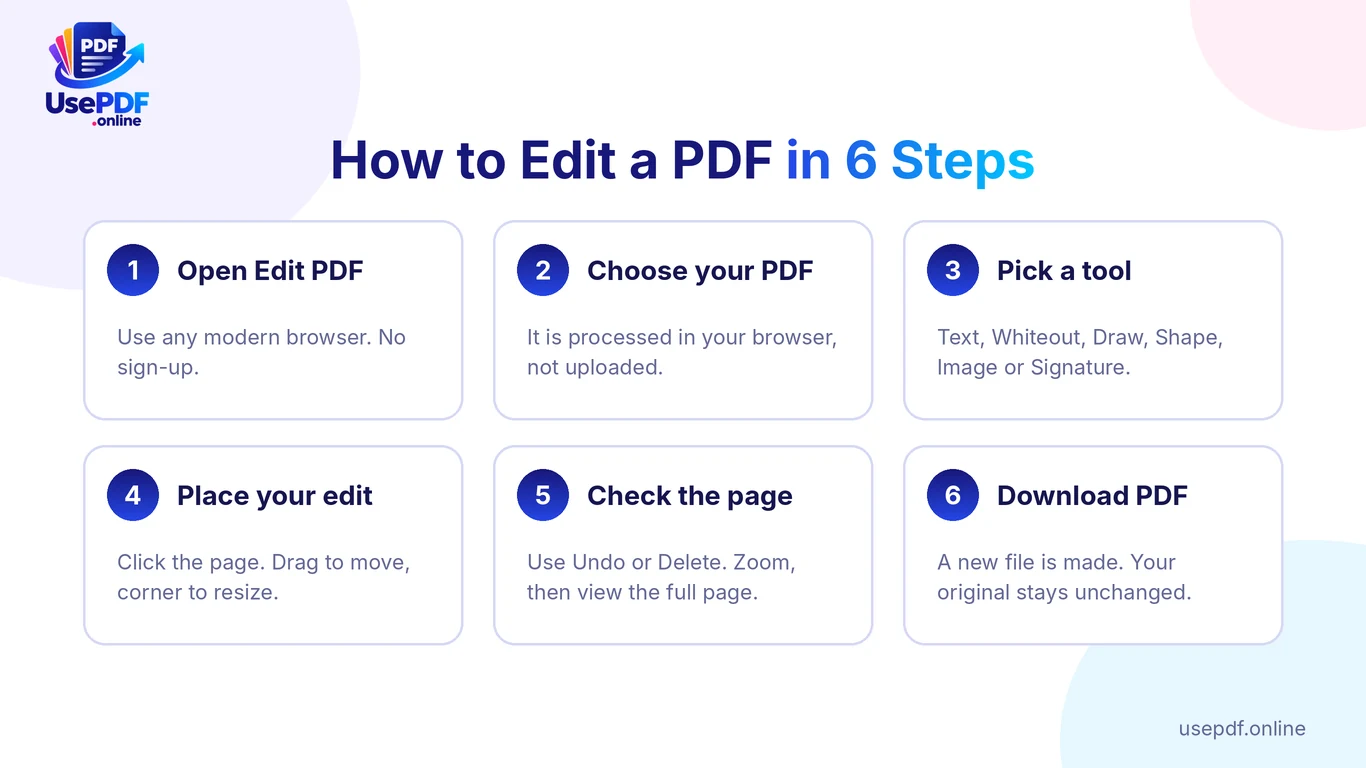
- Open Edit PDF in your browser.
- Choose your PDF. Your file is processed in your browser and is not uploaded to UsePDF.online.
- Pick a tool from the toolbar: Select, Text, Highlight, Whiteout, Draw, Shape, Image or Signature.
- Click the page to place your edit. Click an item to select it, then drag it to move it. Drag the corner handle to resize shapes, images and signatures.
- Use Delete to remove the selected item, or Undo to step back.
- Press Download PDF.
Your original file is not changed. A new PDF is created when you download. This is an easy way to edit a PDF online: no account, no watermark and no waiting for an email link.
How UsePDF helps: because the edited file is built in your browser and saved only when you download, you keep your original untouched and can try again if something looks wrong.
How to Add Text to a PDF
Adding text is the most common edit. It works well for flat forms, applications and agreements that have no fillable fields.
- Select the Text tool.
- Click where the text should start and type.
- Pick a size and colour close to the surrounding text.
- Drag the text into position and zoom in to check alignment.
- Check the full page before you download.
The added text uses a standard font, so it may look slightly different from the original. If you need to type in Urdu, Arabic or another script that standard fonts cannot display, UsePDF draws that text as an image. It looks right on the page, but it is not selectable or searchable.
Resume tip: if you want to edit a resume PDF online for free, add text for small updates such as a new phone number, or use Whiteout and retype a line. For a full rewrite, edit the original Word or Google Docs file and export a fresh PDF. If you only have the PDF, PDF to Word can extract its text into a .docx, but it does not keep fonts, columns or layout.
How UsePDF helps: Edit PDF handles the quick fixes, and PDF to Word is there when you need the text back in an editable document.
How to Draw or Mark Up PDF Pages
To annotate a PDF, you do not need to change the content. You add a layer of notes on top.
- Highlight key sentences in a report or contract.
- Draw a circle around a number, or underline a deadline.
- Add a shape to point at a figure.
- Insert an image, such as a logo or a stamp.
- Sign by drawing your signature on the pad, placing it and resizing it with the corner handle.
On a phone, zoom in to place a mark precisely, then zoom out to check the whole page. If you need to sign and edit a PDF online for free, you can do both in the same session, then download one file.
How UsePDF helps: markup and signing sit in the same toolbar as text and Whiteout, so a review pass takes one upload and one download.
How to Cover Existing Content Using Whiteout
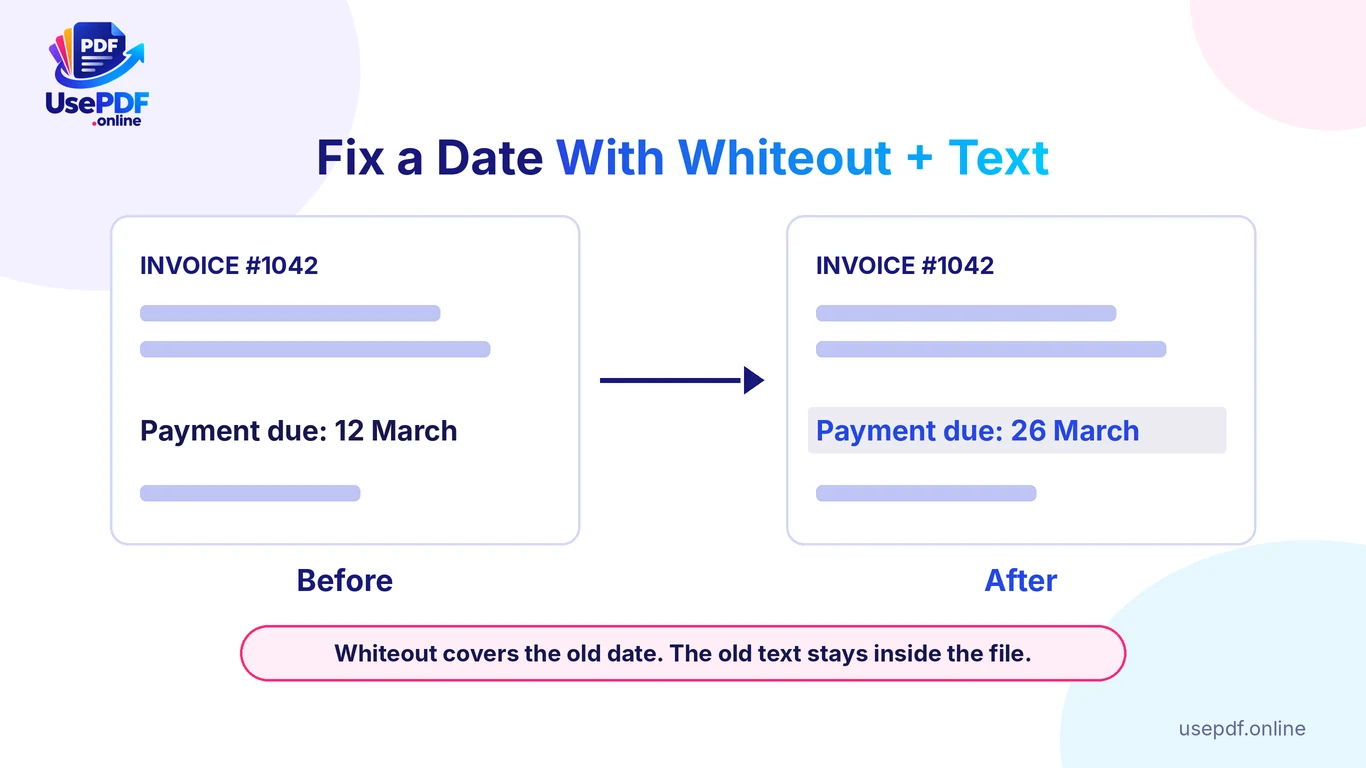
Whiteout is how you "change" text that is already in the file. It covers a small area with a solid block, and then you type the replacement on top.
- Select Whiteout and drag over the old word or number.
- Select Text and type the new value above the block.
- Match the size and colour to the line around it.
- Zoom out and check that the page looks natural.
Before and after: fixing a date
| Before | After | |
|---|---|---|
| Invoice line | Payment due: 12 March | Payment due: 26 March |
| What changed | Original text sits in the file | Whiteout covers it, new text sits on top |
| What the file still holds | The old date | The old date, hidden underneath |
The last row matters. The old date is still inside the file, which leads to the next section.
Before and after: filling a flat form
| Before | After | |
|---|---|---|
| Name line | Blank line | "Ayesha Khan" typed on the line |
| Signature line | Blank line | Drawn signature, resized to fit |
How UsePDF helps: Whiteout plus Text gives you a fast, free way to correct small details in a flat PDF without needing the source file.
Whiteout vs Permanent Redaction: Important Security Differences
This is the most important safety point in this guide. Whiteout is not secure redaction. It hides content visually, but the text underneath is still inside the file. UsePDF's own Edit PDF page warns about this, and the tool does not offer redaction.
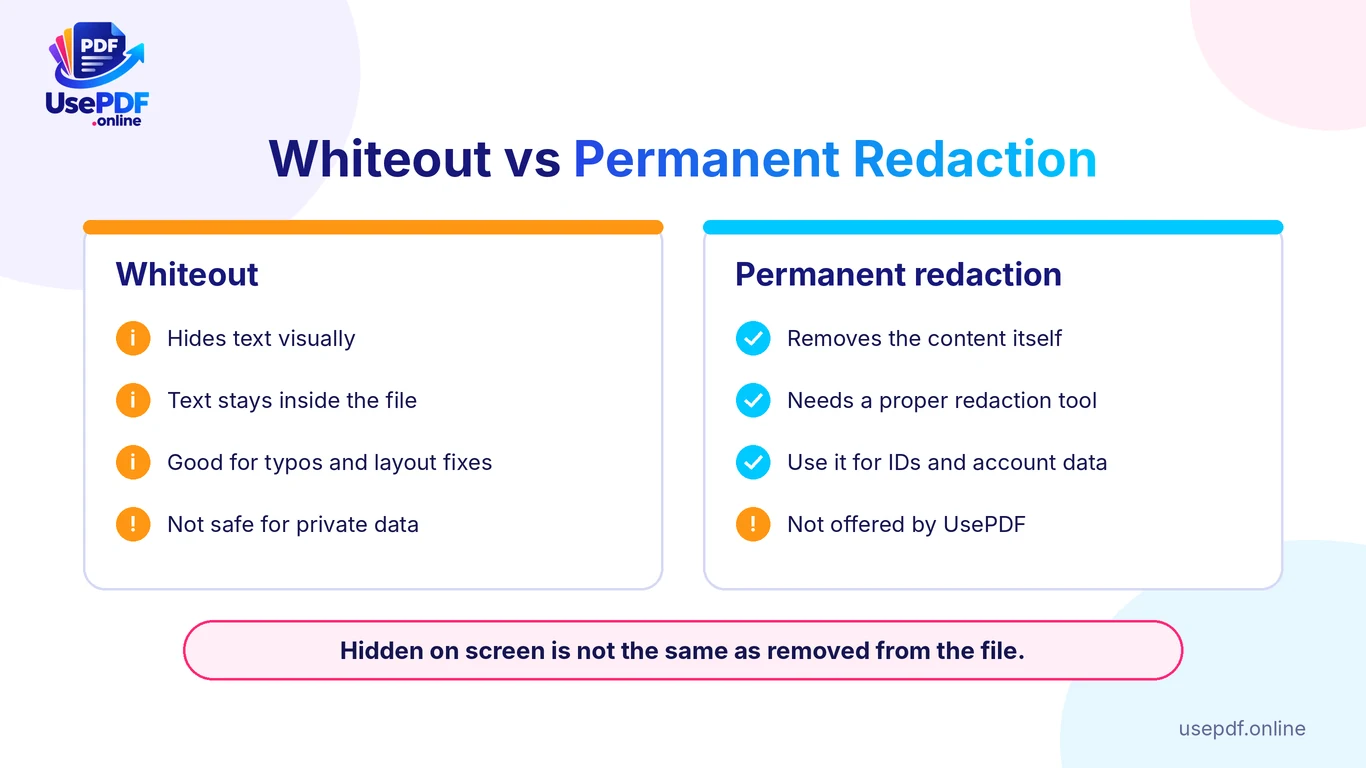
| Whiteout | Permanent redaction | |
|---|---|---|
| Looks hidden on screen | Yes | Yes |
| Removes the content from the file | No | Yes |
| Safe for IDs, bank details, medical data | No | Yes, when done with a proper redaction tool |
| Offered by UsePDF | Yes, as a cover | No |
If a PDF contains passwords, ID numbers, account details or other private data, do not rely on a Whiteout block or a black box. Use a tool with true redaction, which removes the underlying content. Adobe documents this in its guides to redacting sensitive content in Acrobat Pro and sanitizing PDFs to remove hidden content. For business data handling in general, see the FTC's guide to protecting personal information.
A practical rule: use Whiteout for typos and layout fixes. Use proper redaction for anything you would not want a stranger to read.
How UsePDF helps: UsePDF is clear about this limit on the tool page, so you can use Whiteout for what it is good at and choose a redaction tool when privacy is the goal.
Editing PDFs on Desktop and Mobile
The editor runs in your browser, so it works on a laptop, a tablet or a phone with JavaScript enabled. The page says it works on phones.
- Desktop: easier for precise placement and longer edits.
- Phone: tap to place text, and zoom in for accuracy before zooming out to check the page.
- Any device: work in a modern browser and keep your original file as a backup.
If a PDF will not open, it may be damaged or password protected. Remove the password in another viewer first and try again.
How UsePDF helps: there is nothing to install, so the same free tool is available on whichever device has the file.
Free PDF Editors vs Adobe Acrobat
Plenty of tools let you edit a PDF online. iLovePDF, Sejda, Adobe's online tools, Canva and Google all have their own editors or conversion routes. Their features, free limits and sign-in rules differ and change over time, so check each tool's own page before you rely on it.
The useful comparison is about the job:
- Quick edits, marking up and signing: a free browser editor like UsePDF is usually enough.
- Rewriting existing paragraphs: you need a tool that edits the original text, or the source document.
- Permanent redaction and hidden-data removal: a professional tool such as Acrobat Pro, which documents these features.
- Converting a PDF into editable text: Google Drive can convert PDF files to text, according to Google's help page, and layout may change.
If you want to edit a PDF without Adobe, start with the free route. Move to a paid tool only when the job needs features a free one does not offer.
How UsePDF helps: it keeps the free, no-sign-up path simple for the common edits, and it tells you plainly when a job needs something else.
Common PDF Editing Limitations
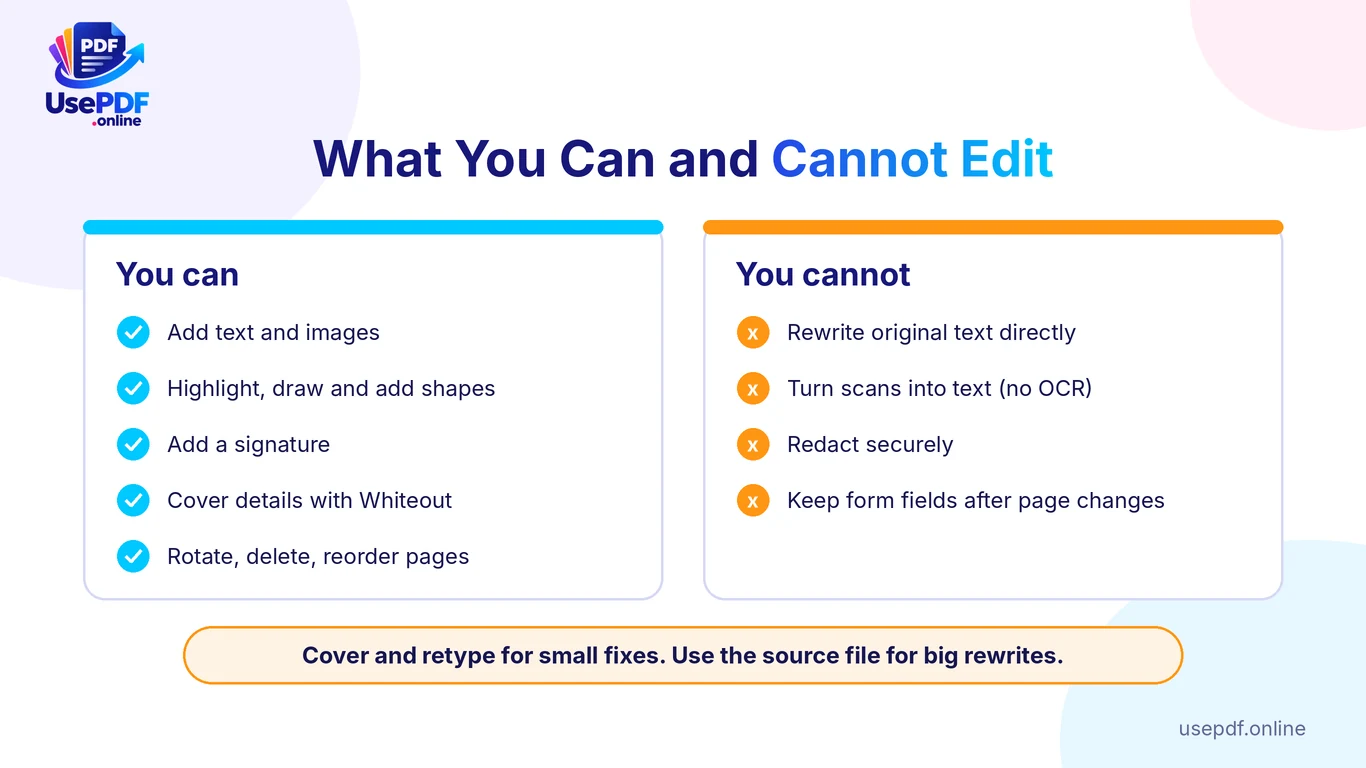
- No direct editing of existing text. You cover and retype it.
- Standard fonts only. Added text may not match the original.
- Non-Latin text becomes an image. It is not selectable.
- No OCR. UsePDF's PDF to Word states that it doesn't perform character recognition, so it can't turn a scanned PDF into editable text. You can still place text and drawings on a scanned page, but you cannot change the scanned words themselves.
- Form fields may be lost if you delete or reorder pages, because the PDF is rebuilt. There is no dedicated form-filler; type over a flat copy instead, or fill fields in a form-capable viewer first.
- No redaction. Whiteout is not secure.
To pull pages out of a large file before editing, use Split PDF. To turn a page into an image, use PDF to JPG. For a related walkthrough, see our relevant articles.
How UsePDF helps: each limit has a companion tool or a clear workaround, so you do not hit a dead end.
Frequently Asked Questions
Can I edit a PDF online for free without signing up? Yes. UsePDF.online's Edit PDF is free and needs no sign-up.
Can I edit existing text in a PDF? Not directly. Cover the old text with Whiteout and type the replacement above it.
Can I edit a scanned PDF online for free? You can add text, drawings, images and signatures on top of a scanned page. You cannot change the scanned words because UsePDF does not do OCR.
Is Whiteout safe for hiding sensitive information? No. The text underneath remains in the file. Use proper redaction for private data.
Is my file uploaded? No. The editor runs in your browser, and your files are not uploaded to UsePDF.online.
Does the tool change my original file? No. A new PDF is created when you download.
Can I fill in a form or sign a PDF? Yes, on flat forms. Type on the lines with Text and draw your signature on the pad. Fillable form fields may need a form-capable viewer.
Does it work on my phone? Yes. Zoom in to place edits, then check the full page.