
Convert PDF to Excel Free with UsePDF.online: PDF table turning into an Excel XLSX file
Why Convert PDF Tables to Excel?
A PDF is built to look the same everywhere. That is great for sharing, but a table locked in a PDF is hard to sort, filter, total or chart. You can copy and paste it, but the columns often collapse into one messy block of text.
An editable Excel file fixes that. Once a table is in a spreadsheet, you can:
- sort and filter rows by date, customer or amount;
- add formulas and check totals yourself;
- merge several reports into one dataset;
- build charts or import the data into other tools.
That is why people search for a PDF spreadsheet converter. The goal is rarely the file itself. It is clean, usable data. A free tool is enough for many text-based tables, as long as you know what it can and cannot do.
How UsePDF helps: PDF to Excel rebuilds rows and columns from the text in your PDF and saves them as a workbook. It is free, needs no sign-up and runs in your browser.
How to Convert PDF to Excel Using UsePDF.online
Here is how to convert a PDF to Excel for free online in five steps. Five steps to convert PDF to Excel on UsePDF.online
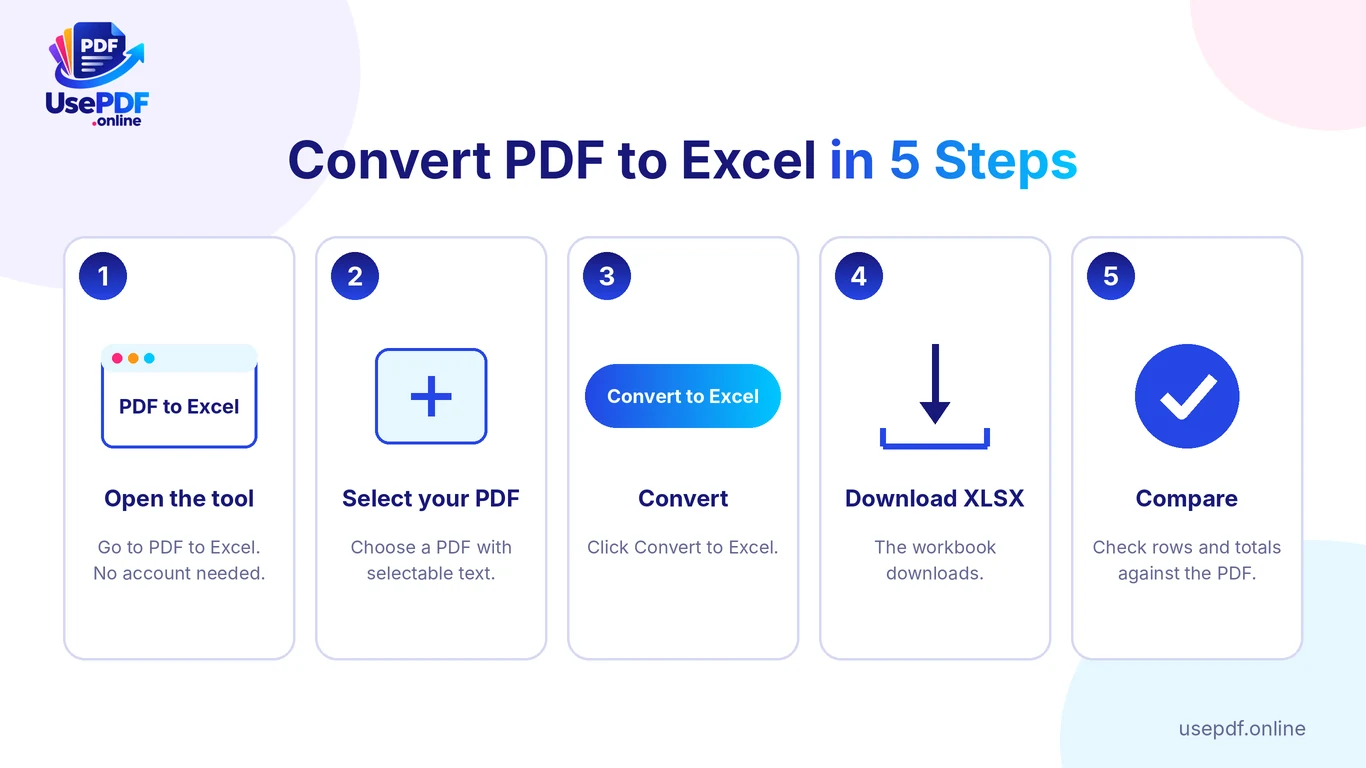
- Open the tool. Go to UsePDF PDF to Excel. You do not need an account.
- Select your PDF. Choose a PDF with selectable text. If you can highlight the table text with your cursor, you are in good shape.
- Check the file details. The file name and size appear below the upload area.
- Click Convert to Excel. The tool analyses each page. Wait for it to finish.
- Download and compare. The .xlsx file downloads automatically. Open it in Excel, Google Sheets or LibreOffice and compare the rows with the PDF.
Two behaviours are worth knowing before you start:
- Each PDF page becomes its own worksheet, named Page 1, Page 2 and so on. This makes checking page by page easier. You can combine sheets later.
- Values that look like numbers are saved as numbers. Values with leading zeros stay as text, and so do values containing spaces or symbols.
The conversion happens in your browser, and the workbook is built in memory and saved only when you download it. That is a privacy advantage over tools that upload files. It does not replace good judgement, so avoid converting documents you are not allowed to handle.
Need a different output? If you want editable text instead of a table, use PDF to Word. Our guide to the PDF to Word converter explains the difference.
Which PDF Tables Convert Best?
Extraction works from text positions. The tool groups text that lines up vertically into the same column. So the cleaner the layout, the better the result.
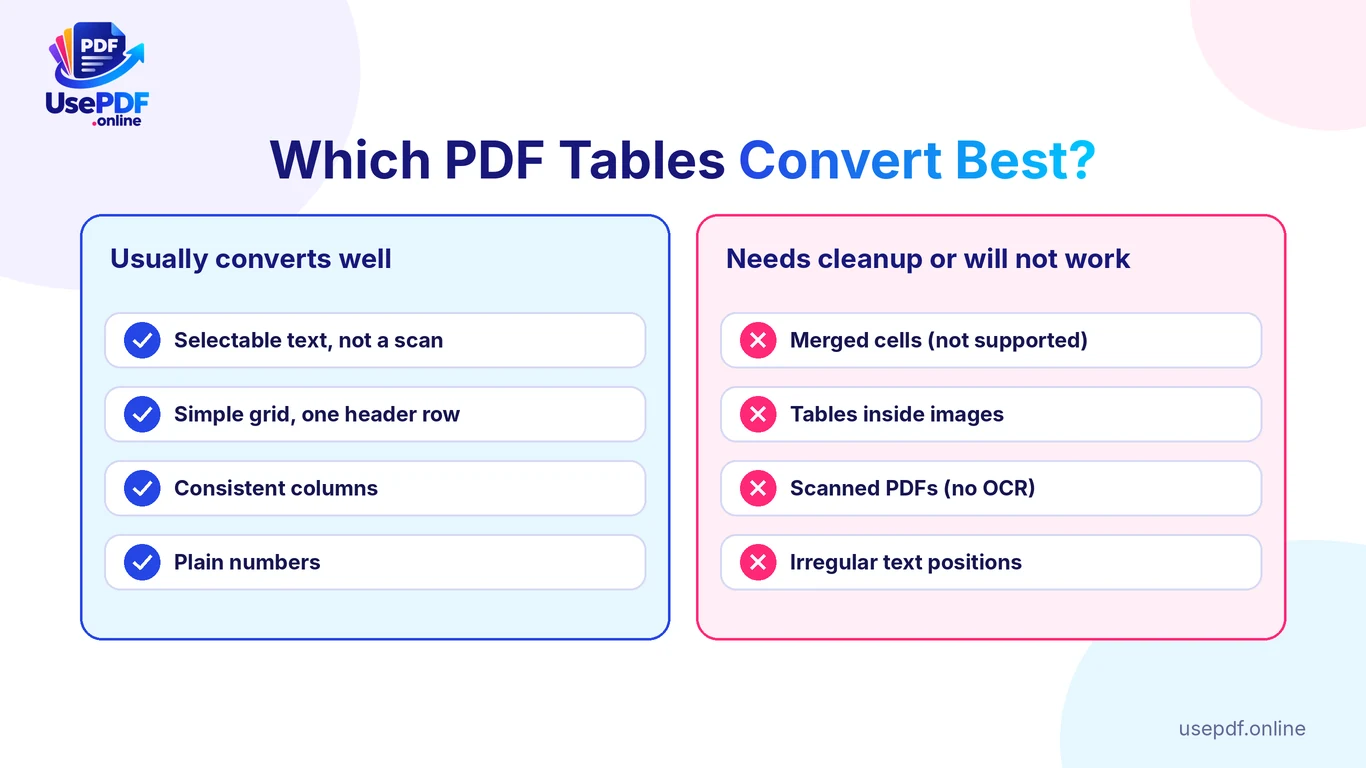
Which PDF tables convert best to Excel: good candidates versus tables that need cleanup
Usually convert well
- PDFs exported from Word, Excel or accounting software (they contain real text)
- a simple grid with one header row
- consistent columns on every page
- plain numbers and short labels
Often need cleanup
- tables with merged cells or sub-headings that span columns
- multi-line descriptions inside one cell
- pages where columns are staggered or irregularly spaced
- tables inside images
UsePDF's own tool page is direct about this: simple tables usually do well, while complex layouts need manual cleanup.
How to Check Rows, Columns and Numeric Values
Never trust a converted table until you have checked it. Free conversion saves typing time, not checking time. Use the sample below to practise.
A sample table to test
This is an illustrative invoice table. It is a made-up sample, not a record of a real conversion. Use it to know what to compare.
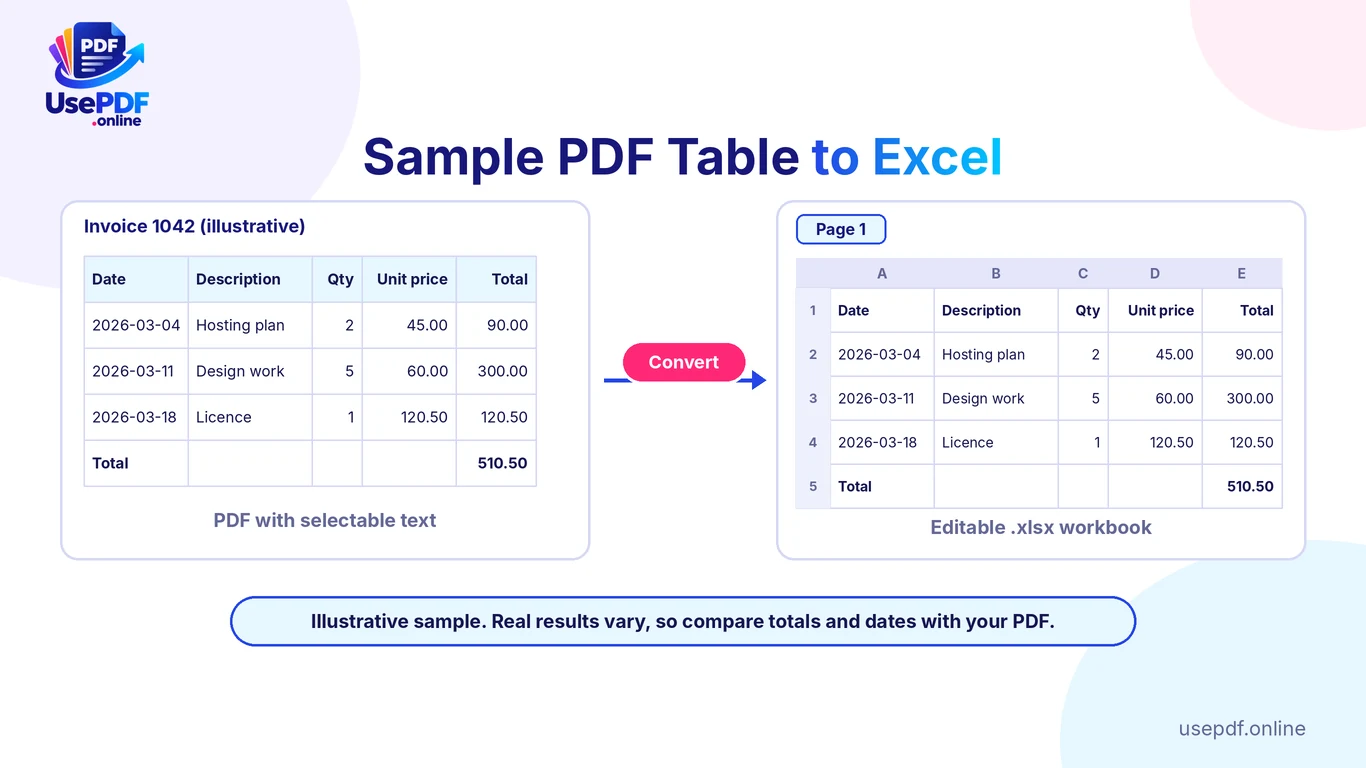
Sample PDF invoice table next to the Excel spreadsheet it should become
| Date | Description | Qty | Unit price | Total |
|---|---|---|---|---|
| 2026-03-04 | Hosting plan | 2 | 45.00 | 90.00 |
| 2026-03-11 | Design work | 5 | 60.00 | 300.00 |
| 2026-03-18 | Licence | 1 | 120.50 | 120.50 |
| Total | 510.50 |
After conversion, open the workbook and confirm that Page 1 shows the same five rows, the same five columns, and the same total.
Five accuracy checks
Five checks before trusting converted data: row count, columns, totals, dates and text numbers
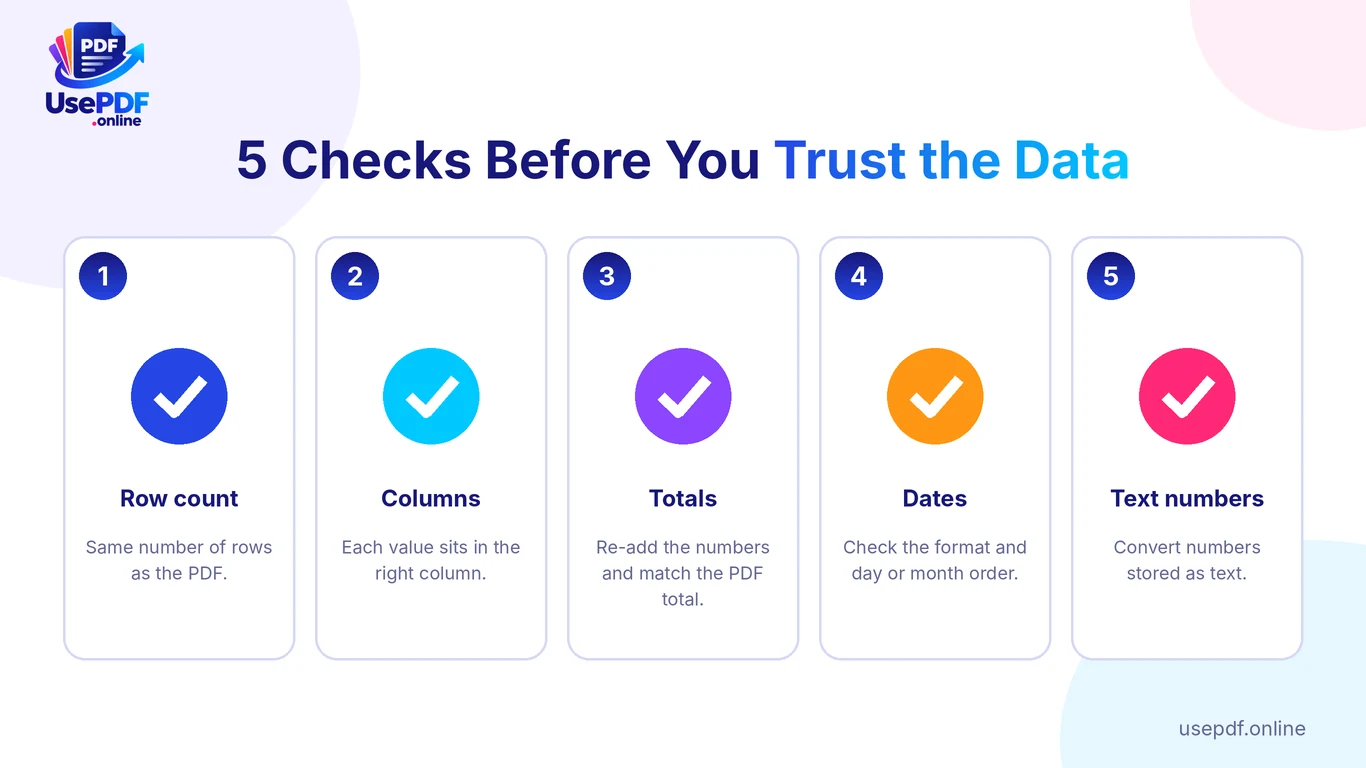
- Row count. Count the rows in the PDF and in Excel. A missing or extra row is the most common slip.
- Columns. Make sure each value sits under the right header. Look for values pushed one column left or right.
- Totals. Re-add the numbers with
=SUM()and compare with the total printed in the PDF. In the sample, 90.00 + 300.00 + 120.50 should equal 510.50. - Dates. The tool page does not say how dates are handled, so treat them as unverified. Check that each date reads correctly and in the right day and month order. Sort the date column: if it sorts alphabetically instead of by time, the dates are stored as text.
- Numbers stored as text. Numbers with leading zeros, spaces or symbols may stay as text. A green triangle in the cell corner, or left-aligned numbers, are clues. Microsoft explains how to convert numbers stored as text.
For high-stakes files, such as financial tables, check every total and a random sample of rows against the PDF. Do this before you send the data to anyone.
Common Problems With Complex Tables
Most problems fall into a few patterns. UsePDF's tool page lists merged cells, borders and cell formatting as not supported, so expect to restore these yourself.
| Problem | What you may see | Quick fix |
|---|---|---|
| Mixed-up columns | Values sit in the wrong column | Cut and paste the affected cells into place |
| Stray cells | Extra values in empty columns | Delete the stray cells and move values |
| Split descriptions | One item spread over two rows | Join the text with a formula or retype |
| Numbers as text | Left-aligned numbers, no totals | Convert to numbers (see section 8) |
| Short or empty sheets | A page with only headings or images | Delete the sheet; pages with no text are skipped |
If the table is very complex, try splitting out only the pages you need first with Split PDF. A smaller, simpler file is easier to check. Our Split PDF guide shows how.
Scanned PDFs and OCR Limitations
This is the most important limit. UsePDF's PDF to Excel tool works with PDFs that have selectable text. It does not include OCR (optical character recognition), so it cannot read a scanned page that is just a picture of a table.
If you upload a scan, the tool reports that no selectable text was found rather than giving you an empty workbook.
A quick test: open the PDF and try to select a word in the table. If you can highlight it, it is text-based. If the whole page highlights as one block, or nothing highlights, it is probably a scan.
For scanned tables, you need OCR software first. Adobe explains how to recognize text in a scanned PDF. After OCR, the PDF may work with a text-based converter, though you should still check the numbers closely, because OCR can misread digits.
PDF to Excel for Invoices, Reports and Statements
Different documents behave differently.
Invoices. Software-generated invoices usually have clean line items. This is a good fit. Check quantities, unit prices and totals, and watch for tax lines that sit outside the main grid.
Reports. Management reports often have multiple tables per page and sub-headings. Expect to rearrange blocks. Because each page is its own sheet, you can work through them one at a time.
Financial statements. If you need to convert financial tables, be extra careful. Brackets for negatives, currency symbols, and thousands separators can keep values as text. After conversion, confirm that negative figures kept their sign and that subtotals still add up.
Bank statements. Treat these as sensitive. Conversion runs in your browser, but you should still follow your organisation's rules on handling financial data, and check every transaction row you rely on.
If you only need a few pages of a long PDF, use Split PDF first. If your source is spread across several files, Merge PDF can combine them before conversion. For a large file, see how to compress a PDF without losing too much quality.
How to Clean Up Converted Excel Data
A few minutes of cleanup makes the data reliable.
- Delete stray cells and empty rows. Remove header repeats from each page if you merge sheets.
- Fix columns. Where text landed in the wrong place, move it. Excel's Text to Columns tool can split a cell that holds two values.
- Convert text to numbers. Select the cells and use the warning icon, or follow Microsoft's steps. Remove currency symbols or spaces first if needed.
- Standardise dates. Apply one date format to the whole column, then re-sort.
- Run a total check. Compare your
=SUM()results with the PDF. - Save a clean copy. Keep the original conversion untouched in case you need to re-check.
Microsoft's guide to the top ten ways to clean your data covers more fixes, such as removing duplicates and trimming spaces.
PDF to Excel vs Manual Data Entry
PDF to Excel compared with manual typing: data entry, errors, layout and scanned PDFs
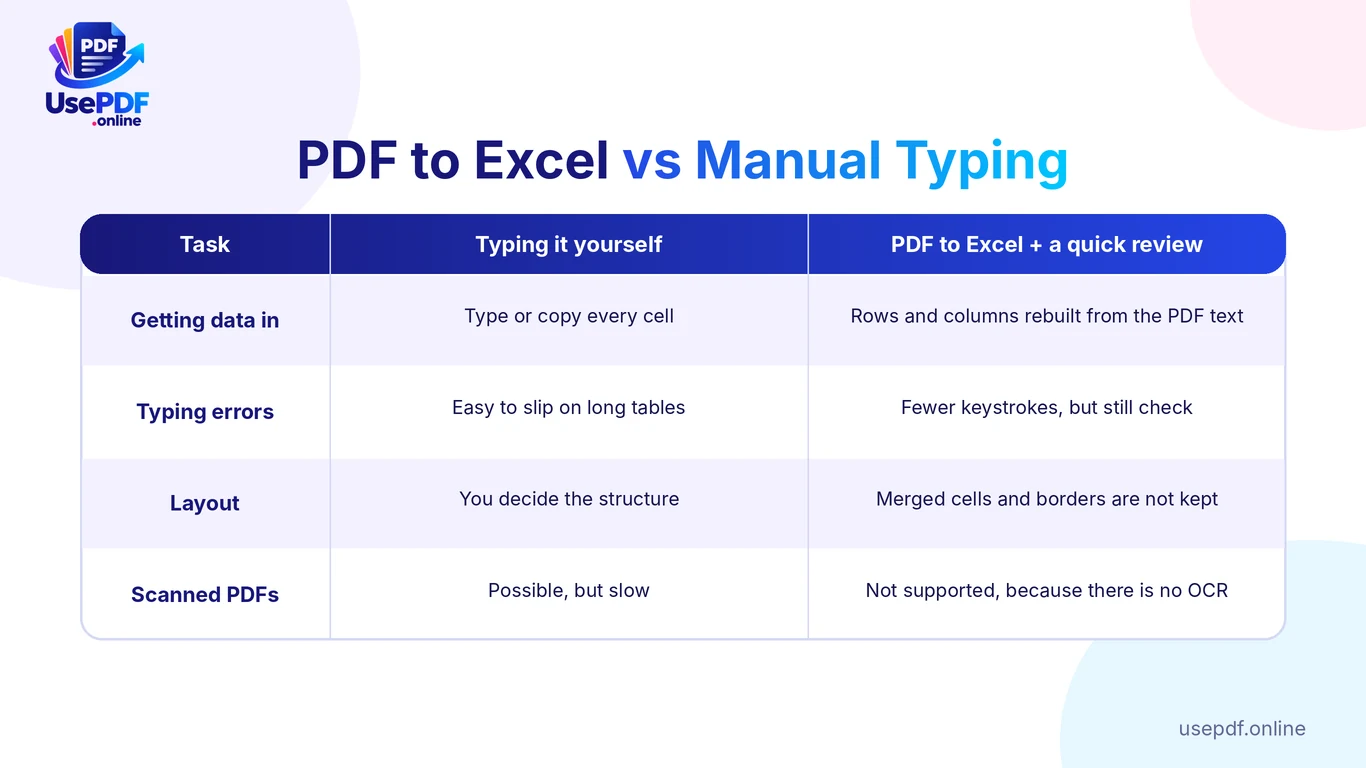
Typing a table by hand gives you full control, but it is slow and easy to get wrong on long tables. A converter gives you a first draft in seconds, but it is only a draft.
The honest comparison:
- Speed: conversion removes most of the typing. You still spend time reviewing.
- Accuracy: neither method is perfect. Typos happen when typing. Misplaced columns and text-formatted numbers happen after conversion.
- Layout: with manual entry you choose the structure. With conversion, merged cells and borders are not kept.
- Scans: manual entry works on any page. The converter does not handle scans.
For most text-based PDFs, conversion plus a careful check is the better workflow. For a short or very messy table, typing may be faster.
Frequently Asked Questions
How can I convert a PDF document into an editable spreadsheet without cost?
Use a free browser tool such as UsePDF PDF to Excel. Select a PDF with selectable text, click Convert to Excel, and download the .xlsx file. Then check the numbers and dates against the PDF.
How can I convert a PDF to Excel for free online?
Open the UsePDF PDF to Excel page, choose your PDF, press Convert to Excel and open the downloaded workbook in Excel, Google Sheets or LibreOffice. The tool is free and works on phones too.
Do I need to sign up or give an email address?
UsePDF's PDF to Excel tool is advertised as free with no sign-up, so there is no account to create. The conversion runs in your browser and the PDF is not uploaded to UsePDF.
What free tools are available to convert PDF files to Excel spreadsheets?
Several free converters exist, and spreadsheet apps can also import some PDF data. Features, file limits and privacy practices vary, so read each tool's own page before you upload anything. UsePDF is one option for text-based PDFs.
What are the top free online services for converting PDF to spreadsheet format?
We do not rank competitors here, because services change often. Judge any tool on five points: does it need sign-up, does it upload your file, does it support scanned PDFs, does it state its limits, and does it save a real .xlsx file?
Which is a reliable web-based utility for changing PDF files into Excel workbooks?
Look for a tool that explains its limits openly. UsePDF states that scans are not supported, merged cells and formatting are not kept, and complex layouts need cleanup. That honesty helps you decide whether it fits your file.
What are the best websites to convert PDF to Excel without paying?
The best choice depends on your file. For clean, text-based tables, a free browser converter is usually enough. For scanned or complex tables, you may need OCR software or a paid tool. Test with a small sample before you convert something important.
Does the converter work on scanned PDFs?
No. UsePDF's tool needs selectable text and does not include OCR. A scanned PDF will return a "no selectable text found" message.
Will every table convert perfectly?
No. Simple tables usually convert well, but complex layouts need cleanup. Always compare rows, totals and dates with the PDF.
Why is each page on a different sheet?
Separate sheets make it easier to check each page against the source. You can copy the sheets into one if you want a single table.
Why do some numbers stay as text?
Values with leading zeros, spaces or symbols are kept as text on purpose. Convert them in your spreadsheet if you need to calculate with them.
Is there a limit on how many PDFs I can convert?
UsePDF's home page says its tools have no daily limit. The PDF to Excel page does not state file-size limits, so very large files may be slow in your browser. Split big files into smaller ones if needed.
Convert Your PDF Table Now
Ready to try it? Open UsePDF PDF to Excel, convert a text-based PDF, and use the five checks above before you rely on the data.
Convert PDF to Excel Free
Need something else? Try Excel to PDF to turn a finished workbook back into a PDF, PDF to PowerPoint for slides, or Edit PDF to annotate a file (see our guide to editing a PDF online free). Browse every tool on the UsePDF home page.